Pre-Submission Insight
Pre-Submission Insight is Formis AI guidance that reviews an in-progress submission against your form's purpose and field context before submit finishes. A Tenant Admin or Manager enables it under Form Settings → AI & Intent, fills Form Intent and field AI context, then contributors see the insight modal on submit.
This walkthrough uses the Request for Information (RFI) form from your construction starter pack. Your Formis tenant's forms may use different fields and names because Formis forms are configured to how you run the work.
In our sample project, Maple Commerce Center, before Jordan submits an RFI, Formis AI shows Pre-Submission Insight so missing context is caught early.
Pre-Submission Insight must be enabled in Form Settings.
What Pre-Submission Insight does
When enabled, the modal surfaces that guidance before the submit finishes.
Turn it on for a form
Tenant Admins or Managers configure Form Settings for a form.
- Open the form (for example Request for Information) and go to Form Settings.
- Open AI & Intent.
- Turn on Enable Formis AI.
- Turn on Pre-Submission Insights.
- Under Form Intent, fill Form Purpose and Workflow Context, then click Save Form Intent.
- In the Form Designer, open each important field and fill its AI context (shown as "{Field name} AI context"). For an RFI, prioritize fields such as RFI Title and RFI Question.
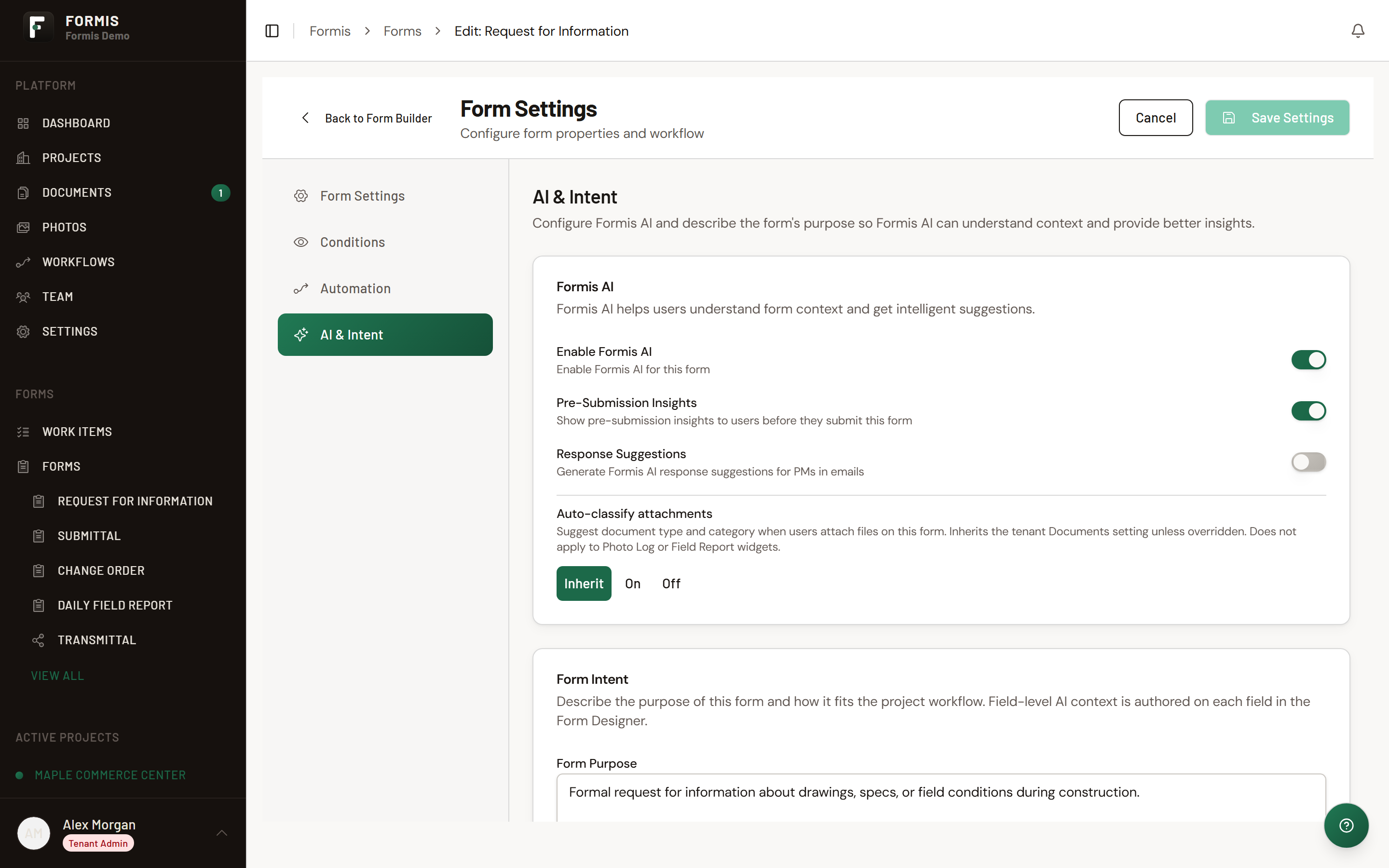
Formis expects form purpose plus at least one eligible field AI context before insight quality is grounded. If intent is incomplete, submitters may see Formis AI needs to know what this form is for with Fill Form Intent now.
Run insight on submit
- Open Forms, select your project if prompted (for example, Maple Commerce Center), and click New Submission on Request for Information.
- Fill the RFI fields.
- Click Submit (or Submit for review from an existing draft).
- Review Pre-Submission Insight, address guidance as needed, then confirm submit.
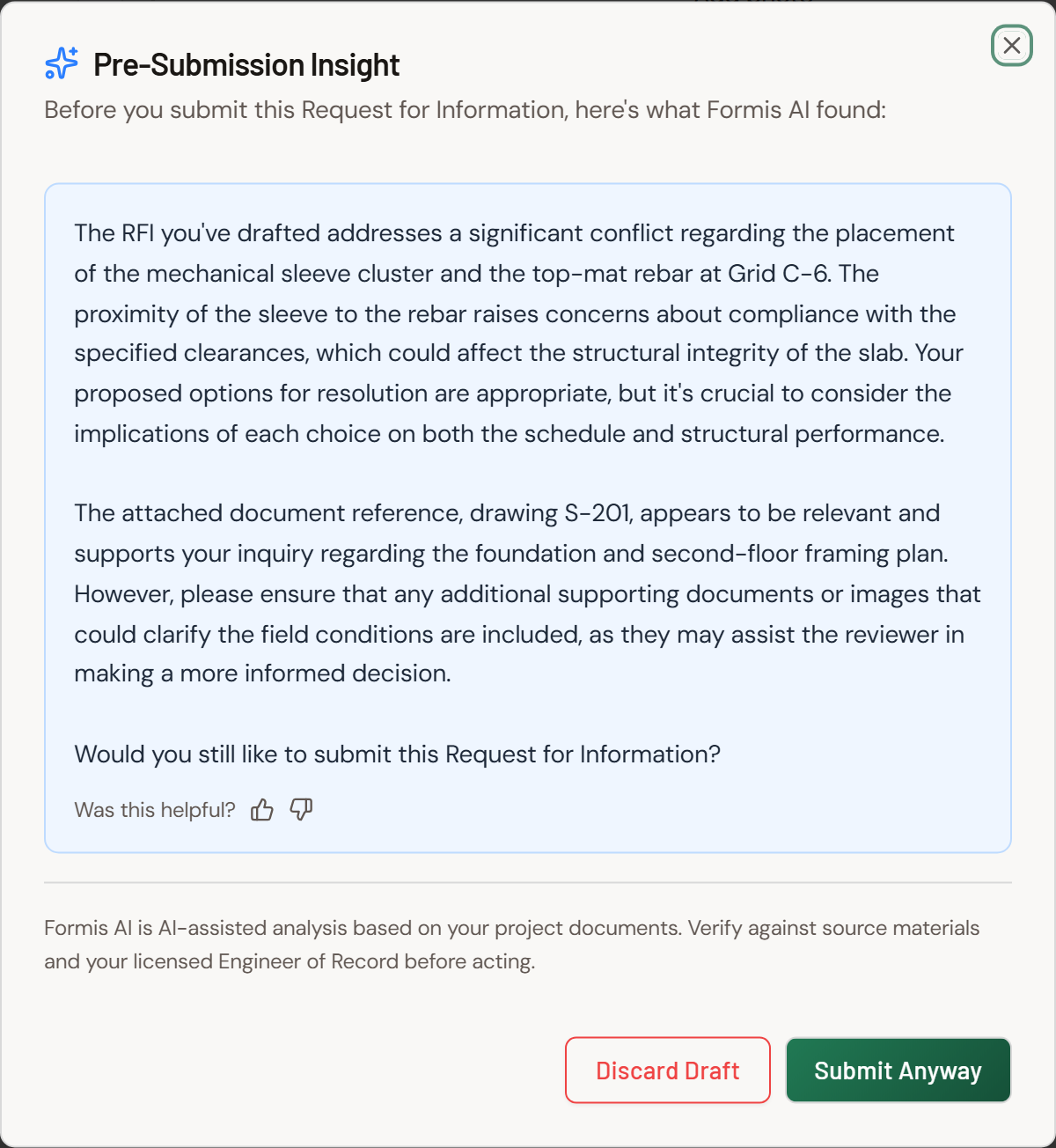
Stronger Form Purpose and field AI context produce more useful insight. Treat intent as the form's job description for Formis AI.