Install a form from the library
Installing a form from the library adds a ready-made template to your Formis tenant so your people can deploy and publish it. On Forms, use Starter templates and click Use Template, or open the Formis form library and choose Create instance when you have Tenant Admin or Manager access.
This walkthrough uses the Request for Information starter form. Your tenant's forms may use different fields and names because Formis forms are configured to how you run the work.
Starter templates also include Punch list, Safety observation, and Action items — Task List forms for walks, hazards, and meeting commitments. See Punch list, Safety observation, and Action items.
In our sample project, Maple Commerce Center, we install Request for Information from Starter templates, then publish so Contributors can submit.
Tenant Admins and Managers install forms. You need at least one project to deploy forms to.
Primary path: Starter templates on Forms
- Open Forms (
/form). - Find Starter templates.
- On Request for Information, click Use Template (or choose Punch list, Safety observation, or Action items when that is the form you need).
- Complete the create wizard (details, design as needed, deploy to your project (assign the form so that project can use it), for example Maple Commerce Center).
- Publish (make it available to contributors) when the form is ready for submissions.
You can also start from Blank Form on Create New Form when you are not using a starter template. See Build a form from scratch.
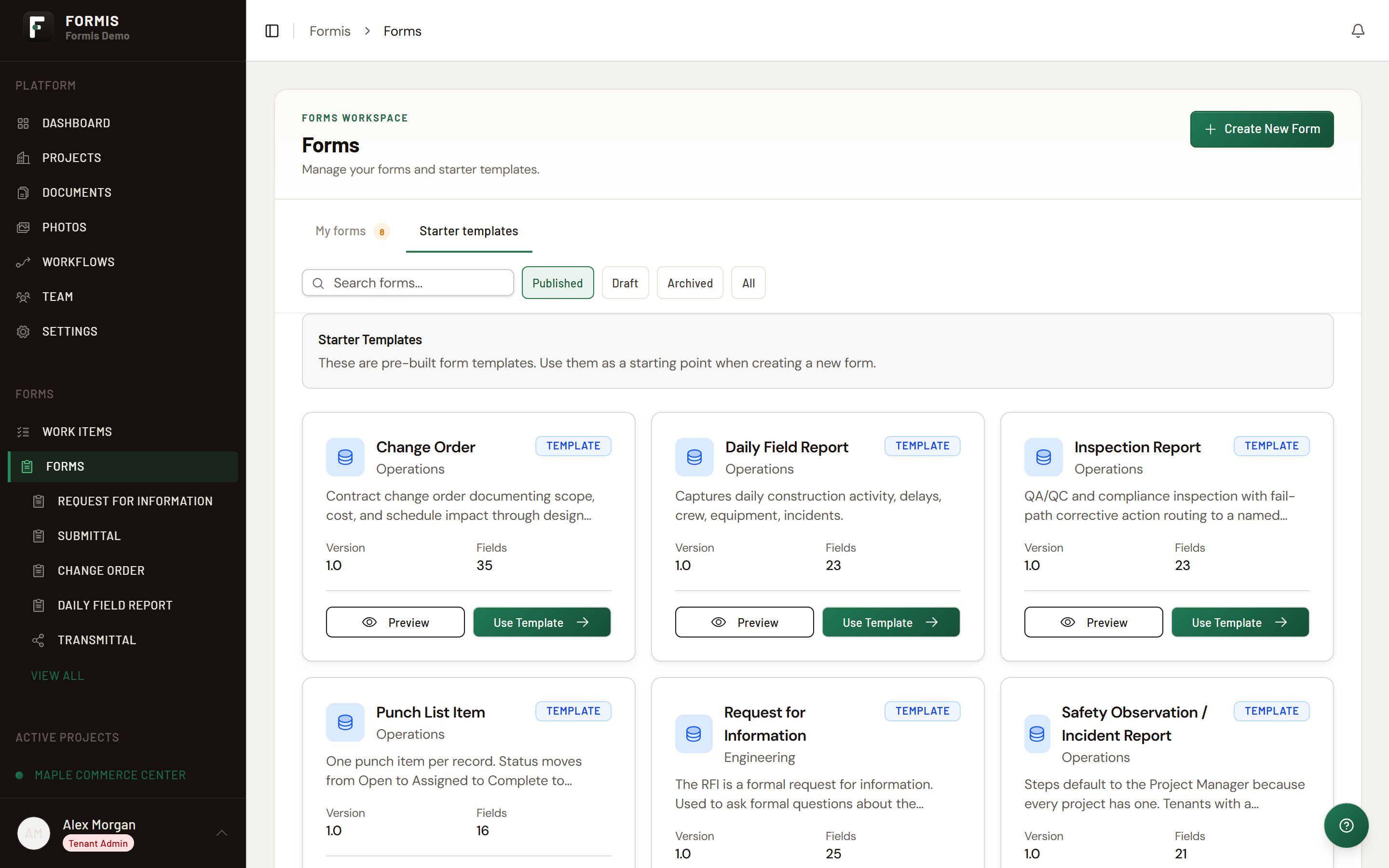
Formis form library
Open /form-library for the Formis form library. Tenant Admins and Managers can install with Create instance. Formis gates others with: "Only Tenant Admins and managers can install from the library."
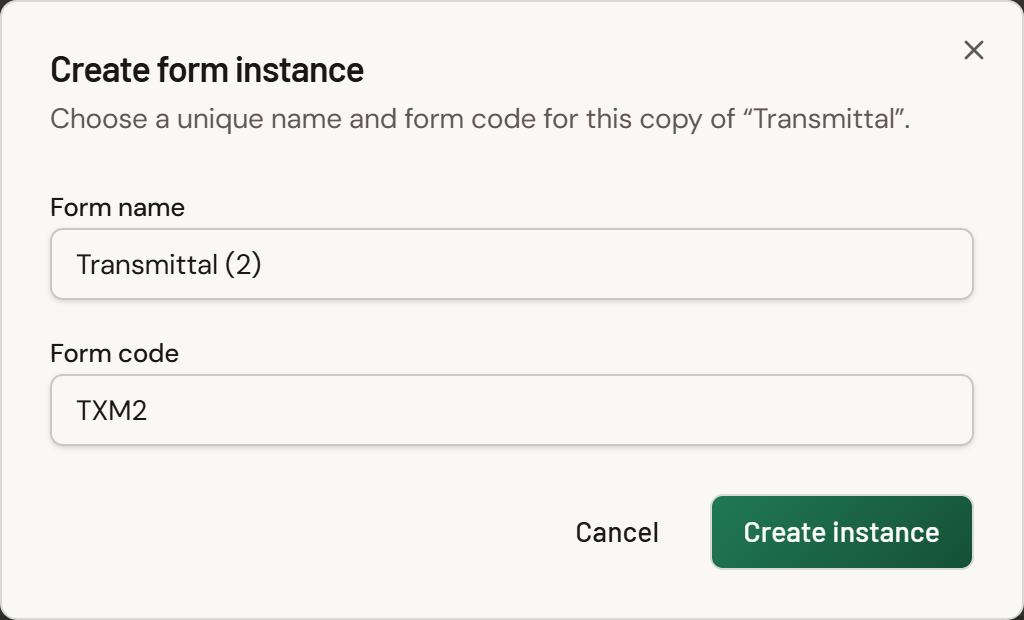
Deploy during setup
If you are still standing up your tenant or adding a project, use Deploy forms in Run the setup wizard instead of repeating those steps here.
Related
- Punch list
- Safety observation
- Action items
- Using Task Lists
- Build a form from scratch
- Submit a form and track it
- Form field types and settings
- Configure a Form Calculation
- Configure an Image Upload field
- Configure a Configurable List
- Show or hide fields with conditions
- What happens when you edit a form that already has submissions
- Configure routing and approvals
- Run the setup wizard
- Pre-Submission Insight