Submit a form and track it
Submitting a form creates a tracked work item that moves through your project's workflow. Open Forms, start New Submission on the published form, fill required fields, submit, then follow status on the form dashboard or revise from Returned to Me when a reviewer sends it back.
This walkthrough uses the Request for Information (RFI) form from your construction starter pack. Your Formis tenant's forms may use different fields and names because Formis forms are configured to how you run the work.
In our sample project, Maple Commerce Center, Contributor Alex opens Request for Information, submits RFI-001, then revises it after the Project Manager returns it for more detail.
The form must be published and deployed to your project.
Create and submit an RFI
- Open Forms (
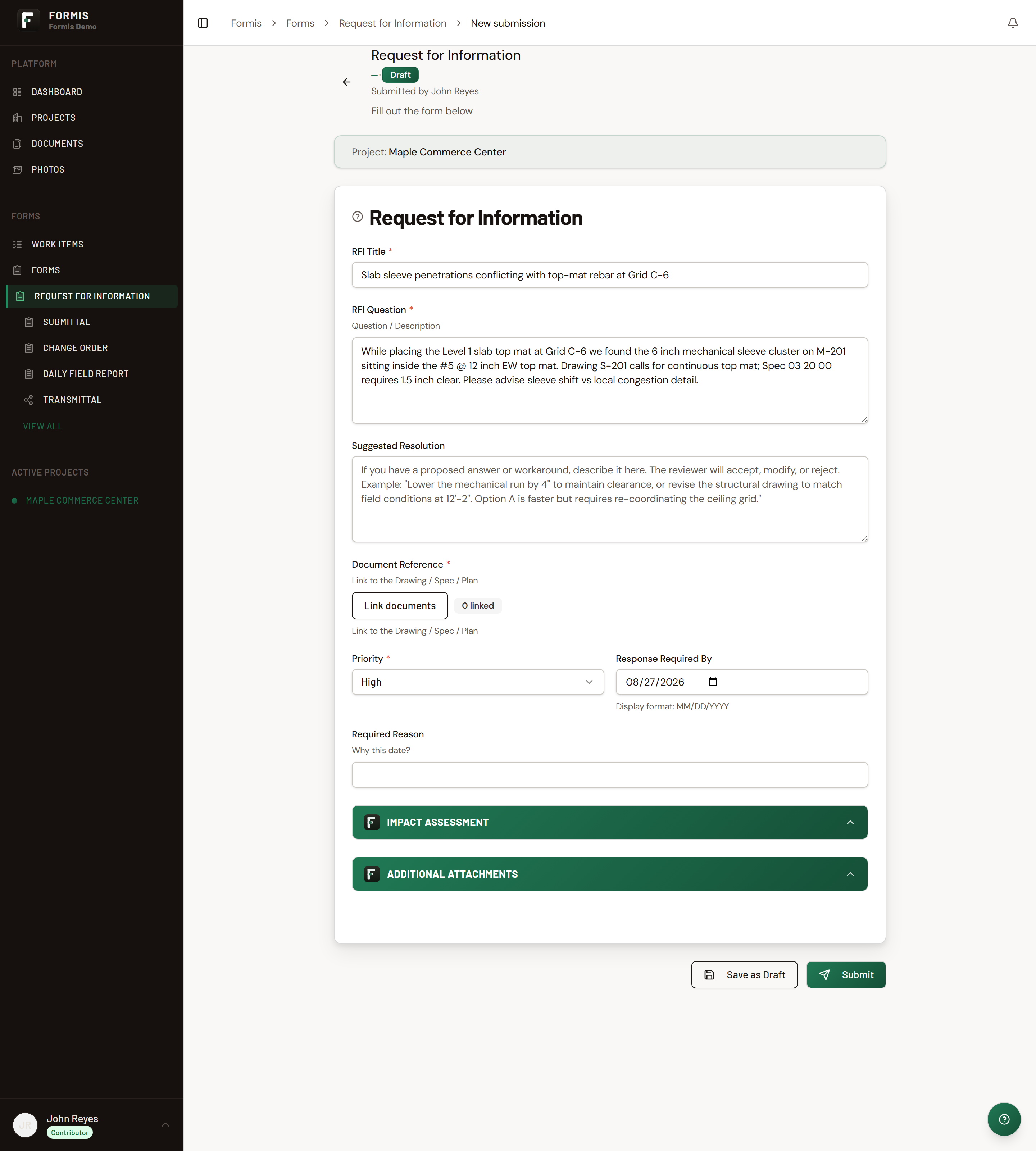
/form) and select your project if prompted (for example, Maple Commerce Center). - On the Request for Information card, click New Submission.
If you don't see a form you expect, your Access Group may not include it. Ask a Manager on the host company to check.
- Fill intake fields such as RFI Title, RFI Question, Suggested Resolution, Document Reference, Priority, and Response Required By as your form shows them.
- Click Save as Draft if you need to pause, or Submit when ready.
- From an existing draft detail, use Submit for review when that action is shown.
Track status
After submit, open the form dashboard or the submission detail to follow workflow status. Common status categories include Under Review, Awaiting Approval, and Revision Required. Lifecycle labels such as Draft and Submitted mark whether the record is still editable as a draft.
When a reviewer requests more information, the step category is often Revision Required, and the default action to continue is Resubmit.
Respond when an item is returned
- On the home Dashboard, find Returned to Me.
- Open the RFI row and click Open & revise.
- Update the fields the reviewer called out.
- Submit again ( Resubmit / Submit for review as shown).
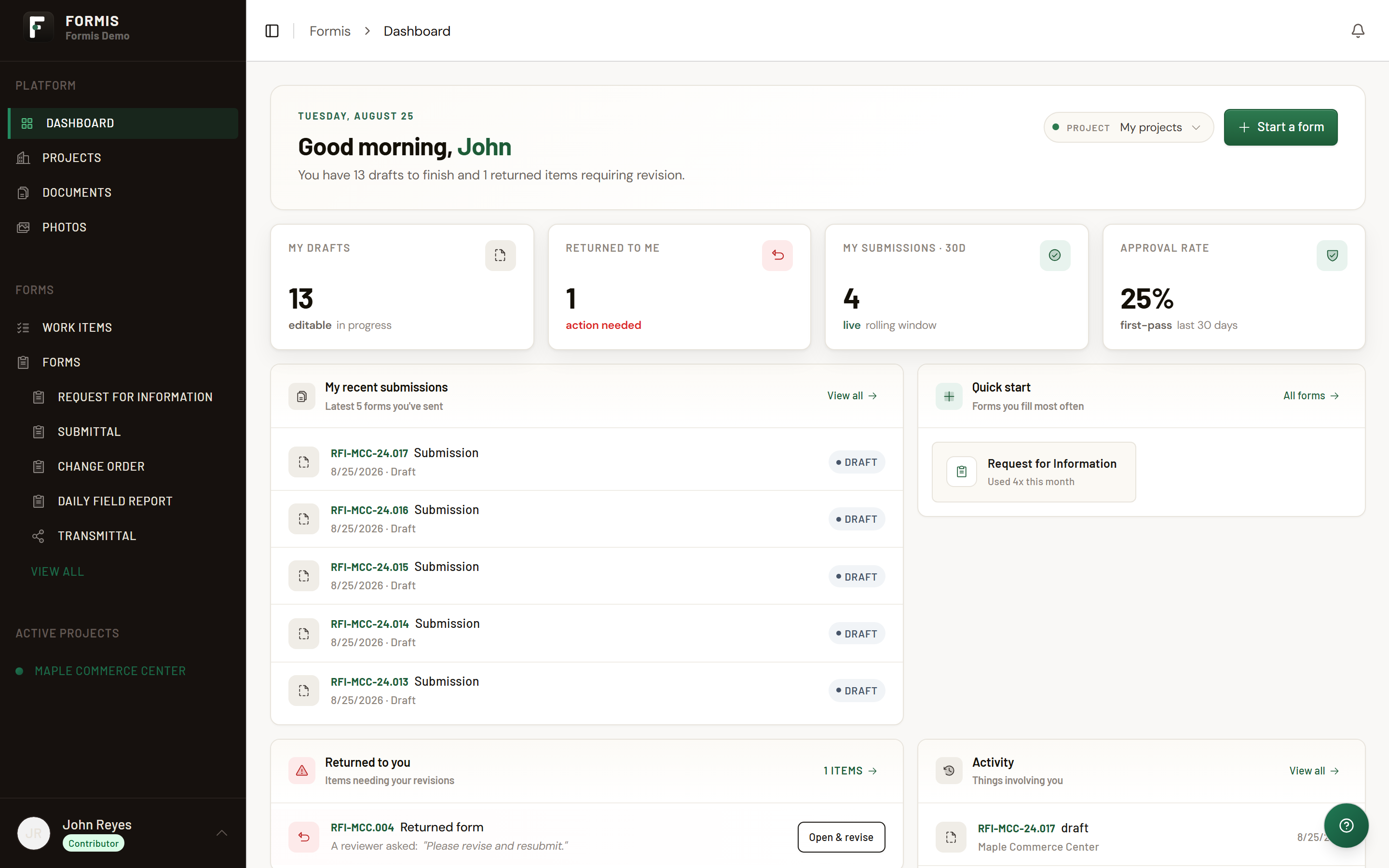
Returned items are drafts whose workflow instance (the live run of the form's routing path for that submission) is in a returned state. Completing the revision sends the RFI forward again in the same workflow.
Related
- Using Task Lists
- Install a form from the library
- Build a form from scratch
- Form field types and settings
- Configure a Form Calculation
- Configure an Image Upload field
- Configure a Configurable List
- Show or hide fields with conditions
- What happens when you edit a form that already has submissions
- Configure routing and approvals
- Pre-Submission Insight
- Understand seats and project roles