Route a form to multiple reviewers and set completion rules
Route one review step to several reviewers by assigning the step to a People Picker field, a Project role, or named people, then choose a Completion Rules option that decides when the step is done: a response from one reviewer, all of them, a majority, or a set number.
Before you start
- You need a Tenant Admin or Manager seat with access to edit the form's workflow in your Formis tenant.
- The form needs a review step in its workflow. If your form began as a starter form like the RFI, the workflow and its review step already exist.
Choose who the step routes to
Open the workflow for your form and select the review step. On the Assignees tab, three pickers route the step:
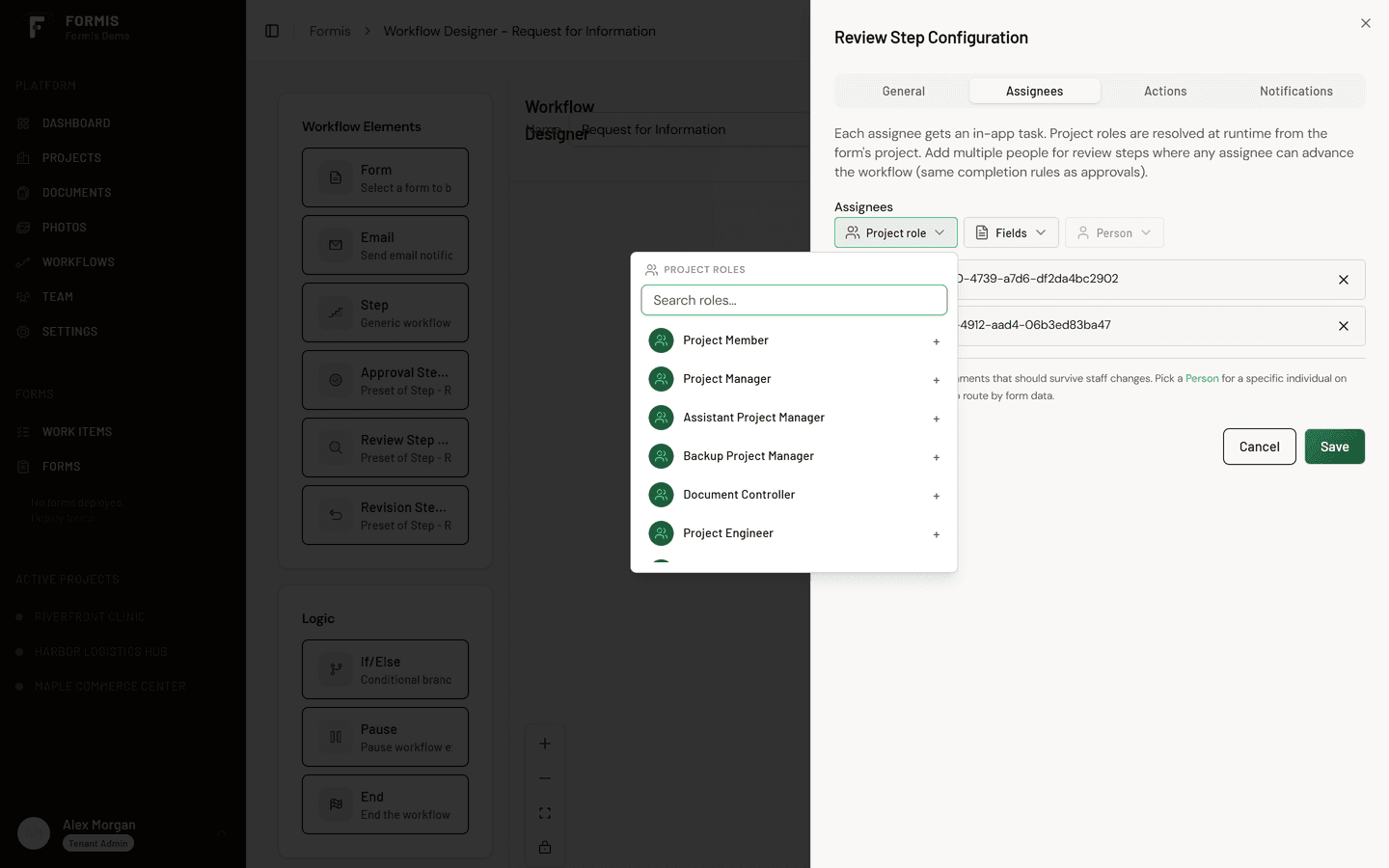
1. Person. Pick specific users. The step always goes to them, on every submission. Use this when the same people review every time, like a standing plan review team.
2. Project role. Assign the step to a role such as Document Controller or a review role you have defined. Whoever holds that role on the project receives the step. Use this when the reviewer depends on the project, not the form: the workflow stays the same across projects while the people change.
3. Fields. Drop a People Picker field onto the form itself and turn on Allow Multiple Selection, then point the step's assignees at that field. Now whoever fills out the form chooses the reviewers for that submission. Use this when the right reviewers change from submission to submission, like an RFI that sometimes needs structural review, sometimes architectural, sometimes both.
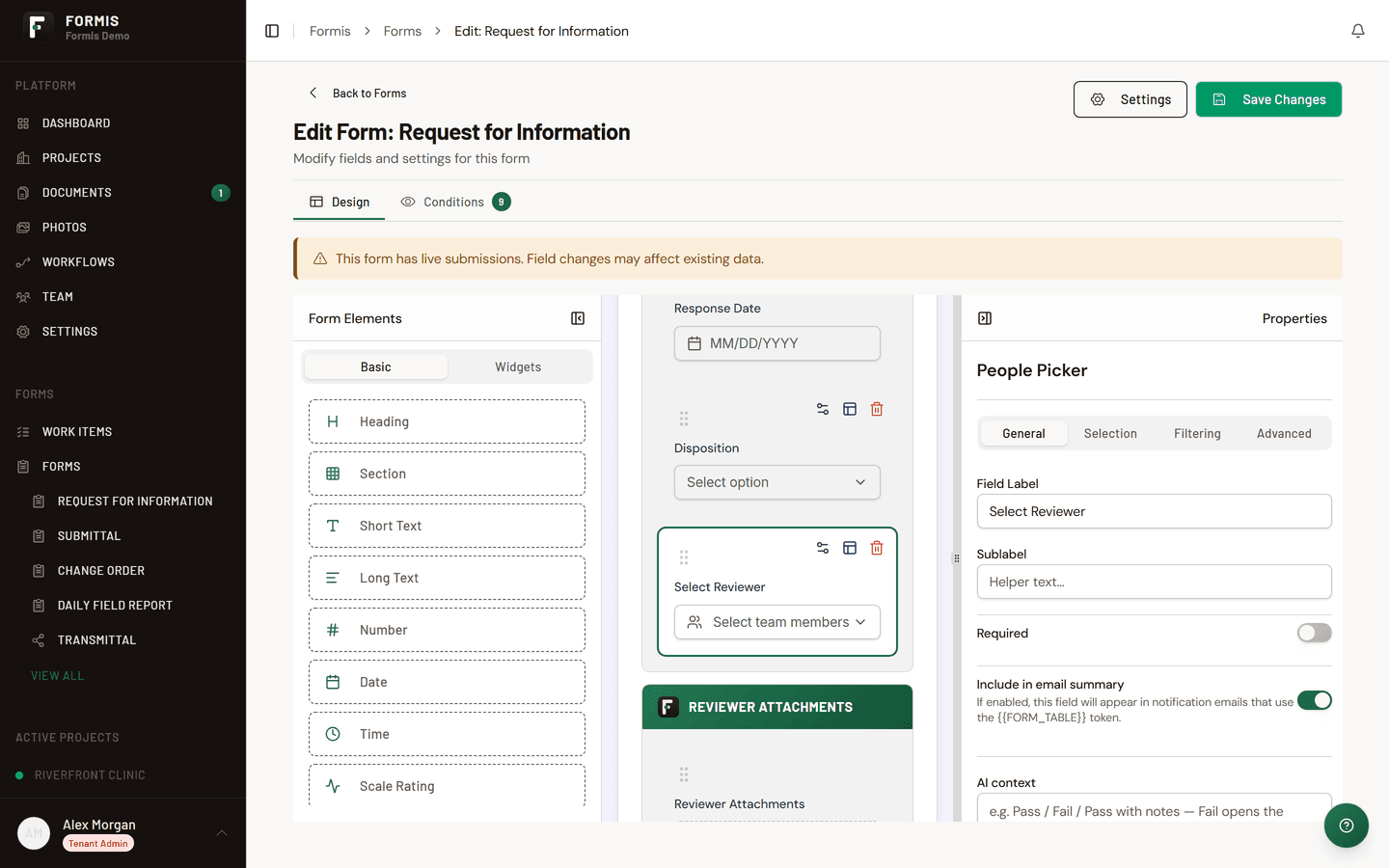
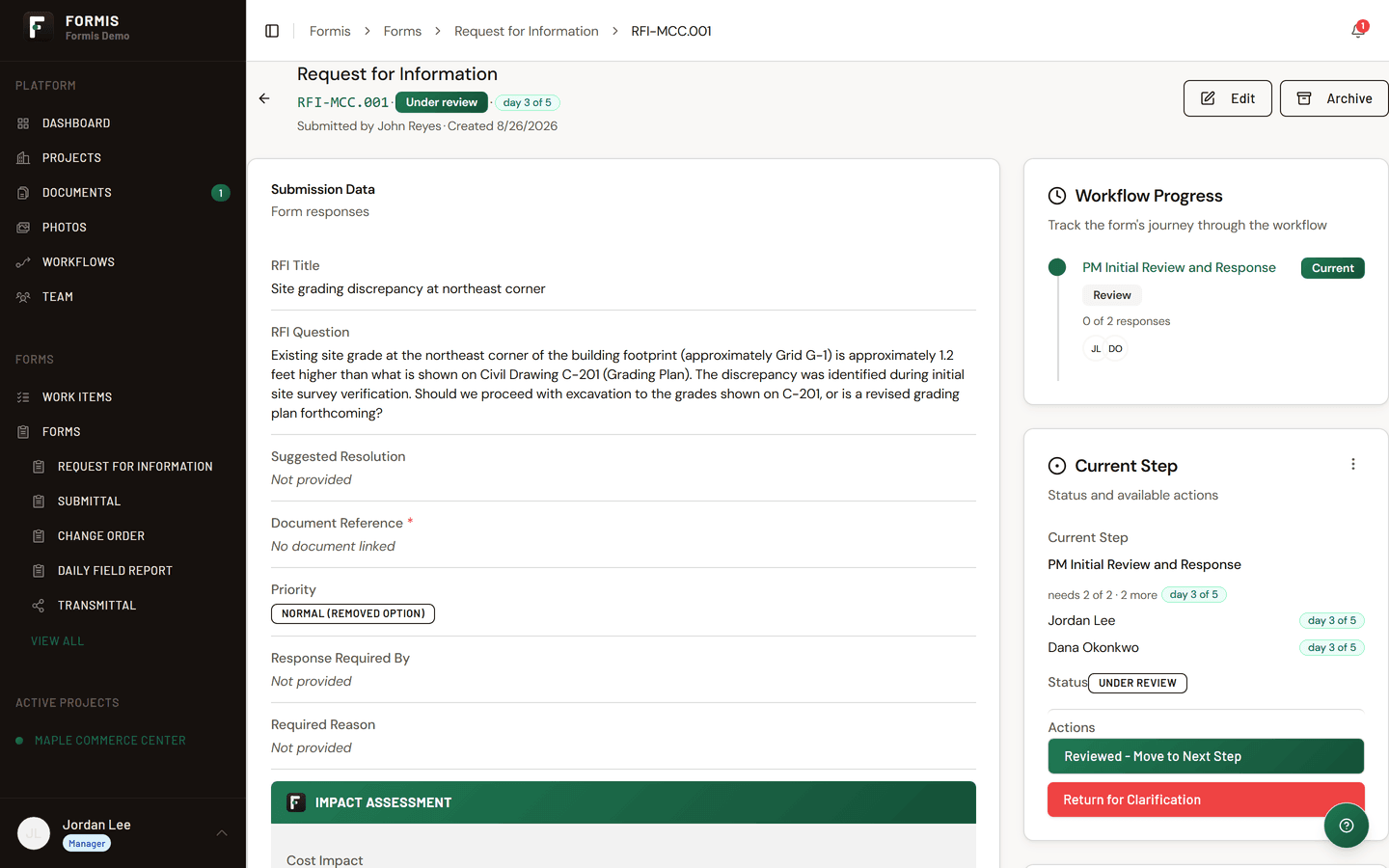
You can combine these with more than one review step. A common pattern on Maple Commerce Center: Jordan Lee, the project manager at Formis Demo, keeps a first review step assigned to himself for a completeness check, then a second step routed to a People Picker so the submitter names the design reviewers each RFI actually needs.
Set the completion rule
Completion Rules appear on the step's General tab, under Task Behavior, when the assignment can resolve to more than one reviewer: several named people, a People Picker with Allow Multiple Selection, or a Project role that allows multiple people. When the step can only resolve to a single reviewer, Completion Rules are hidden: the step completes on that reviewer's action.
When the step can have multiple reviewers, the completion rule decides when it is finished once responses start coming in. Select the review step and choose one:
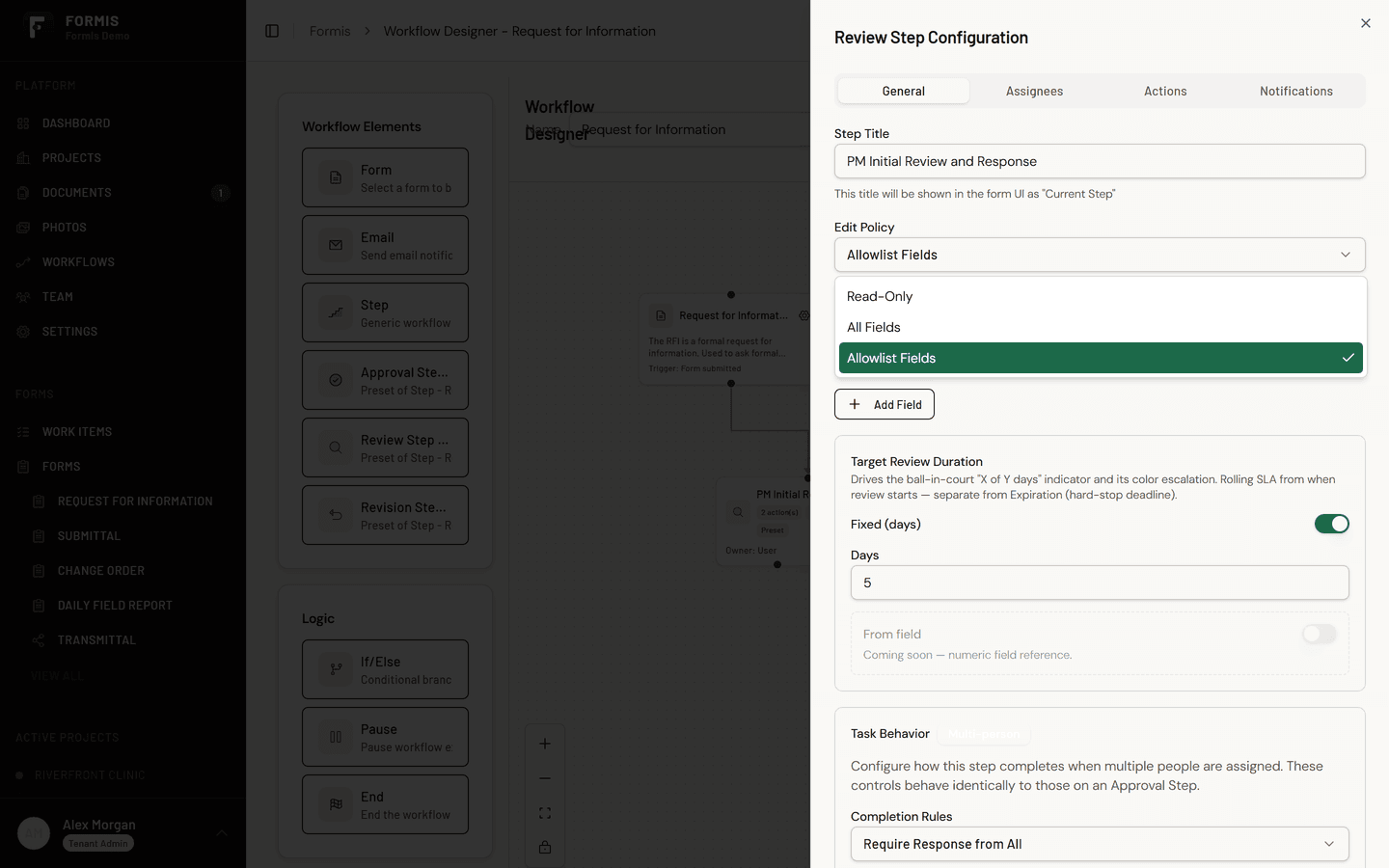
Require Response from One Person. The first response completes the step. Use this for triage steps and reviews where any qualified reviewer can answer, like a first-pass completeness check that any project engineer can clear.
Require Response from All. Every assigned reviewer must respond before the step completes. Use this when each reviewer covers different ground and skipping one is not acceptable, like an RFI routed to both the structural engineer and the architect, where each discipline must weigh in.
Require Response from Majority. The step completes when more than half of the assigned reviewers have responded. Use this for consensus reviews on a panel, like a three-person owner review team where two aligned responses are enough to move forward.
Require a Certain Number of Responses. You choose how many responses complete the step (Required Count). Use this when you need coverage without full participation, like requiring any two of the four QC reviewers on a checklist.
On MCC-24, Jordan routes a steel connection RFI to Dana Okonkwo at North Arrow Management and the structural engineer, with the rule set to Require Response from All: an answer that only covers one discipline would leave the field crew guessing.
Keep the step moving
The review step has settings that keep responses from stalling:
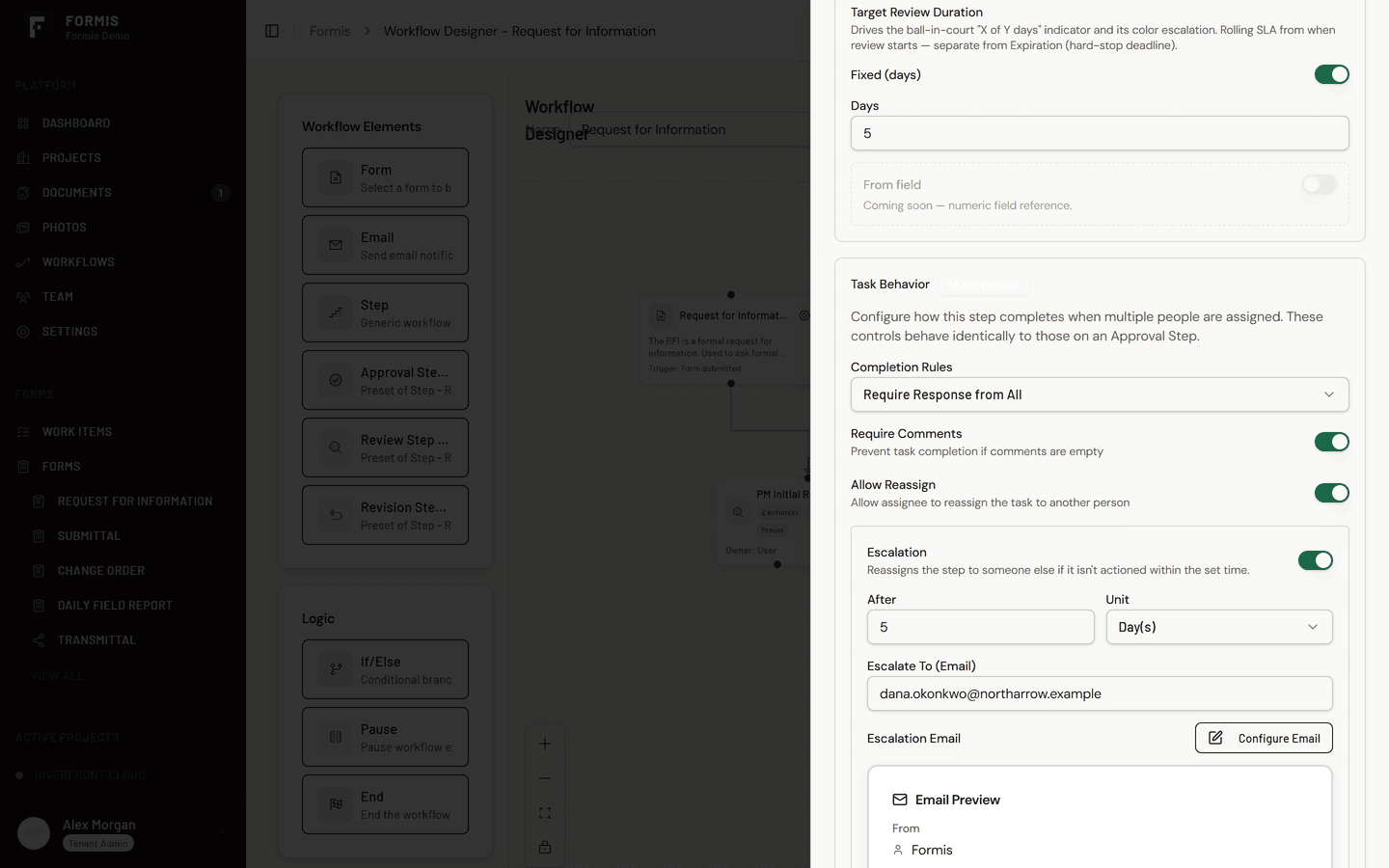
- Require Comments. Require reviewers to leave a comment with their response, so a disposition always arrives with its reasoning on the record.
- Allow Reassign. Let an assigned reviewer hand the step to someone else. A Manager or Tenant Admin can also reassign someone else's pending task when this switch is on.
- Target Review Duration. Set how many days the step should take (Fixed (days)). The form shows whose court it is in and a day X of Y pill against that target.
- Escalation. If the step is not actioned within the time you set (After and Unit), it reassigns the pending task to the person whose email you enter in Escalate To (Email), so a review never sits silently in one person's queue. Escalation is available when the step can resolve to more than one reviewer.
What reviewers see
Each assigned reviewer receives the step as a task with the form, its attachments, and any linked register documents. Responses are recorded per reviewer, and the step completes according to the rule you set. Once it completes, the workflow continues to the next step or closes out.