The anatomy of a review step
A review step hands a form submission to a person who must act on it. Every review step has three parts: an assignee who receives it, a set of actions they choose from, and a notification that tells them it is their turn. Anyone who can open the submission can watch its progress.
The three parts of a review step
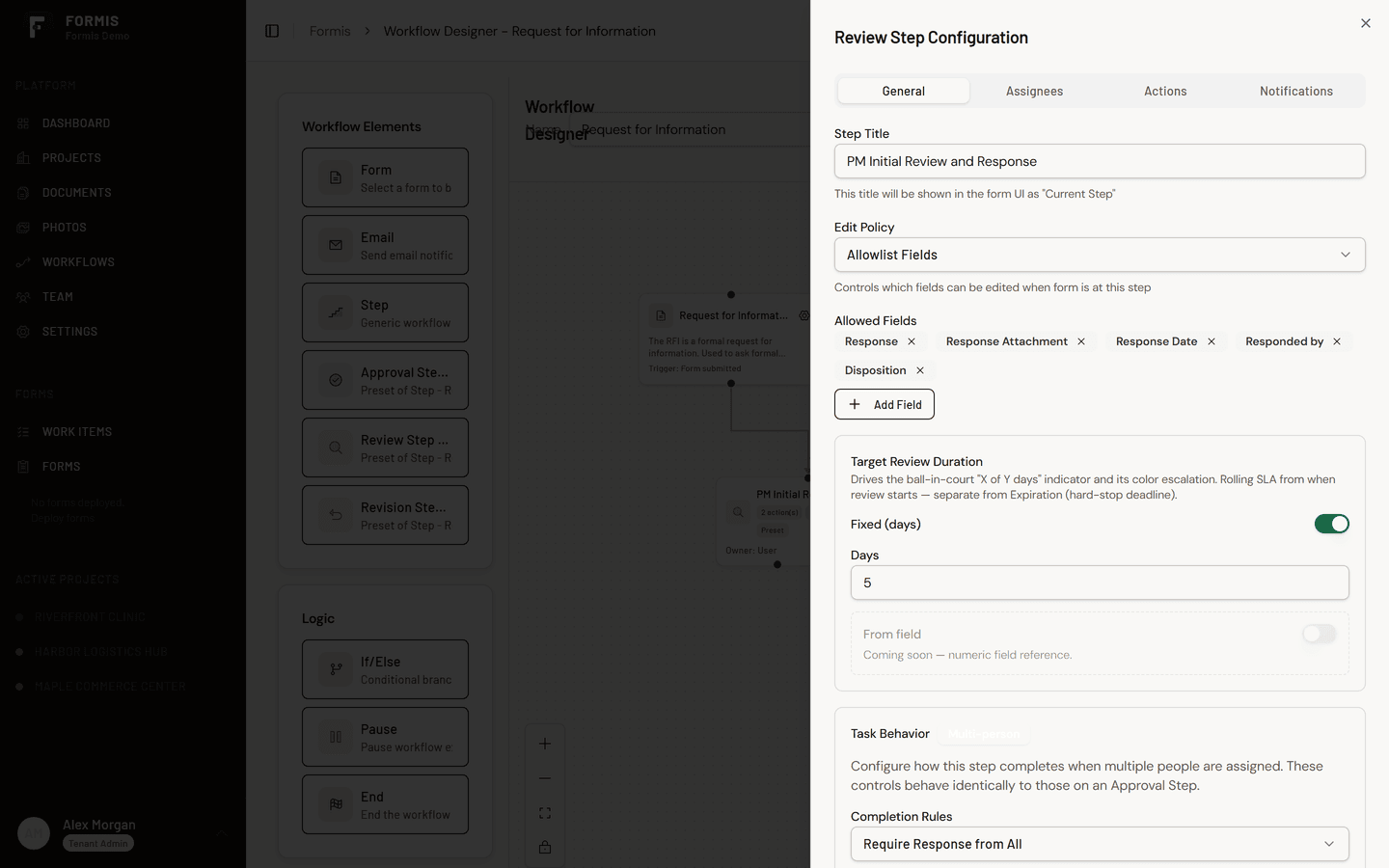
1. The assignee. Someone must own the step. The assignee can be a named Person, whoever holds a Project role, or the people selected in a People Picker field on the form itself. Until they act, the step sits in their court, and the form shows exactly that.
2. The actions. Each review step carries the choices the assignee picks from, like Approved, Approved as Noted, Revise and Resubmit, or Rejected on a submittal review. The action the reviewer picks is their response, it goes on the record with their name and the date, and it can decide where the workflow goes next.
3. The notification. When the step becomes theirs, the assignee always gets an in-app notification. Starter forms also send an assignment email; you can edit that message on the step's Notifications tab under Notification Email (Configure Email or Edit Email) in your Formis tenant. A new Review Step (Preset) needs Configure Email before mail goes out. Emails notify, the app acts: the reviewer opens the form in Formis to respond.
What the reviewer sees
The assigned reviewer receives the step as a task: the submitted form, its attachments, any linked register documents, and the action choices for the step. They review, pick an action, add comments if the step requires them, and submit their response.
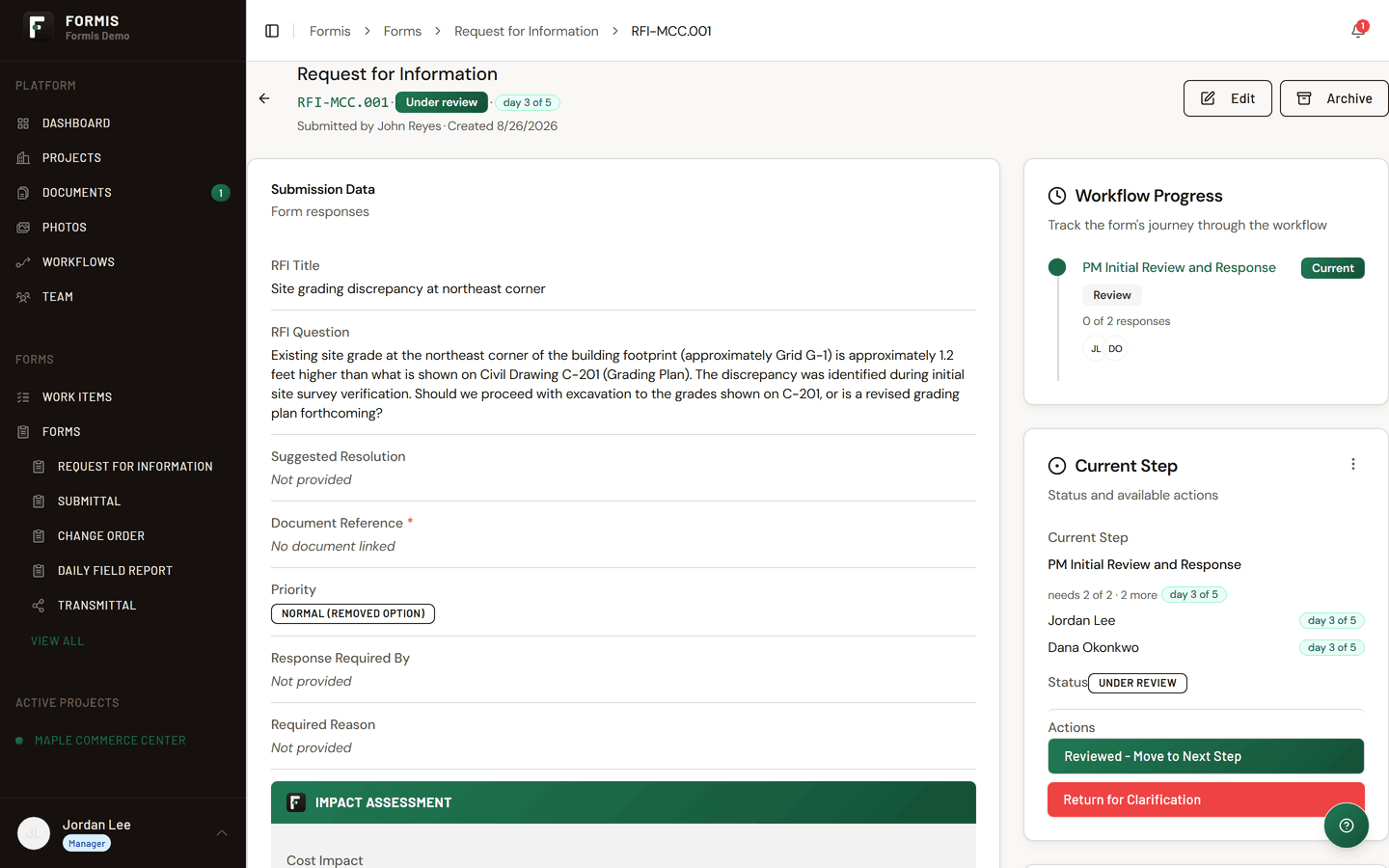
What you see on the submission
Open a submission that has a workflow and you can follow the review without asking anyone. Visibility follows Standing and Delivery: the submitter, people in the same company on that form, host-company Managers on the project, the host-company Tenant Admin, and anyone the step is routed to can open it. People at another company do not see it unless a step or transmittal delivers it to them.
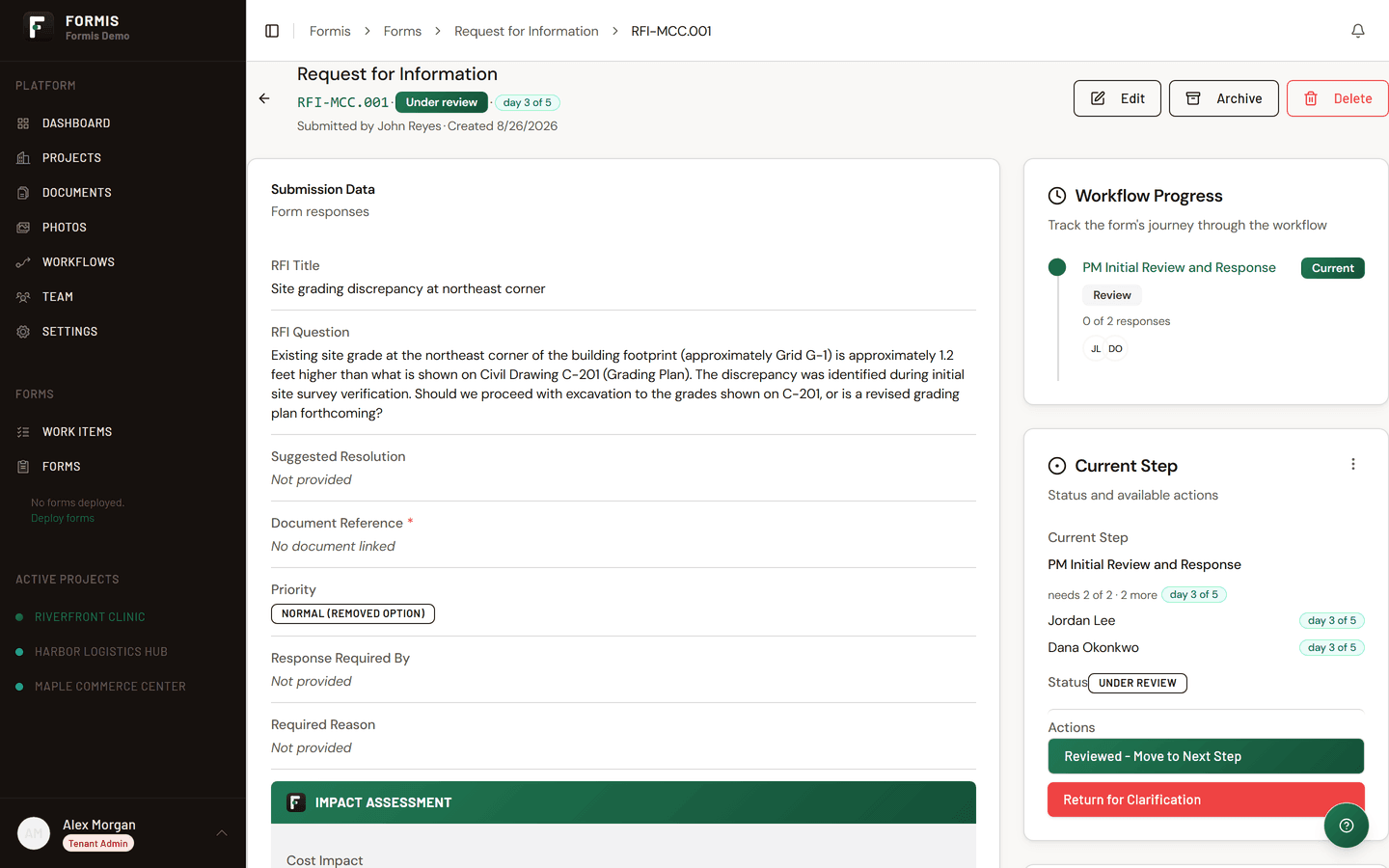
- Current Step. Which step the workflow is on right now (the Current Step card).
- Assigned To. Whose court it is in, with a day X of Y pill against the step's Target Review Duration.
- Responses so far. On steps with multiple reviewers, each response is recorded per reviewer as it arrives.
- Workflow Progress. Every completed step, who acted, what they chose, and when, the running record of the review from submission to closeout.
On Maple Commerce Center, when John Reyes at True Line Concrete submits an RFI, he can open it any time and see that it sits with Jordan Lee for a completeness check, then watch it move to the design reviewers, without a single status-check email.
What completing a step does
When the assignee responds, the step completes and the workflow moves on: to the next step, down a conditional path based on the response, or to closeout. On steps with several reviewers, a completion rule decides how many responses finish the step, and when responses differ, Outcome severity on the Actions tab can be configured so the strictest answer wins where that matters.