Keep reviews moving: target durations, escalation, and reassignment
Reviews stall when a step sits in one person's court. Three step settings keep them moving: Target Review Duration that shows day X of Y, Allow Reassign so a reviewer can hand the step to someone else, and Escalation that reassigns the step automatically when it is not actioned in time.
Before you start
- You need a Tenant Admin or Manager seat with access to edit the form's workflow in your Formis tenant.
- These are settings on a review step. If you are new to review steps, start with The anatomy of a review step.
Set a target duration
Select the review step. On the General tab, turn on Target Review Duration, then set Fixed (days) and Days: how many days the step should take.
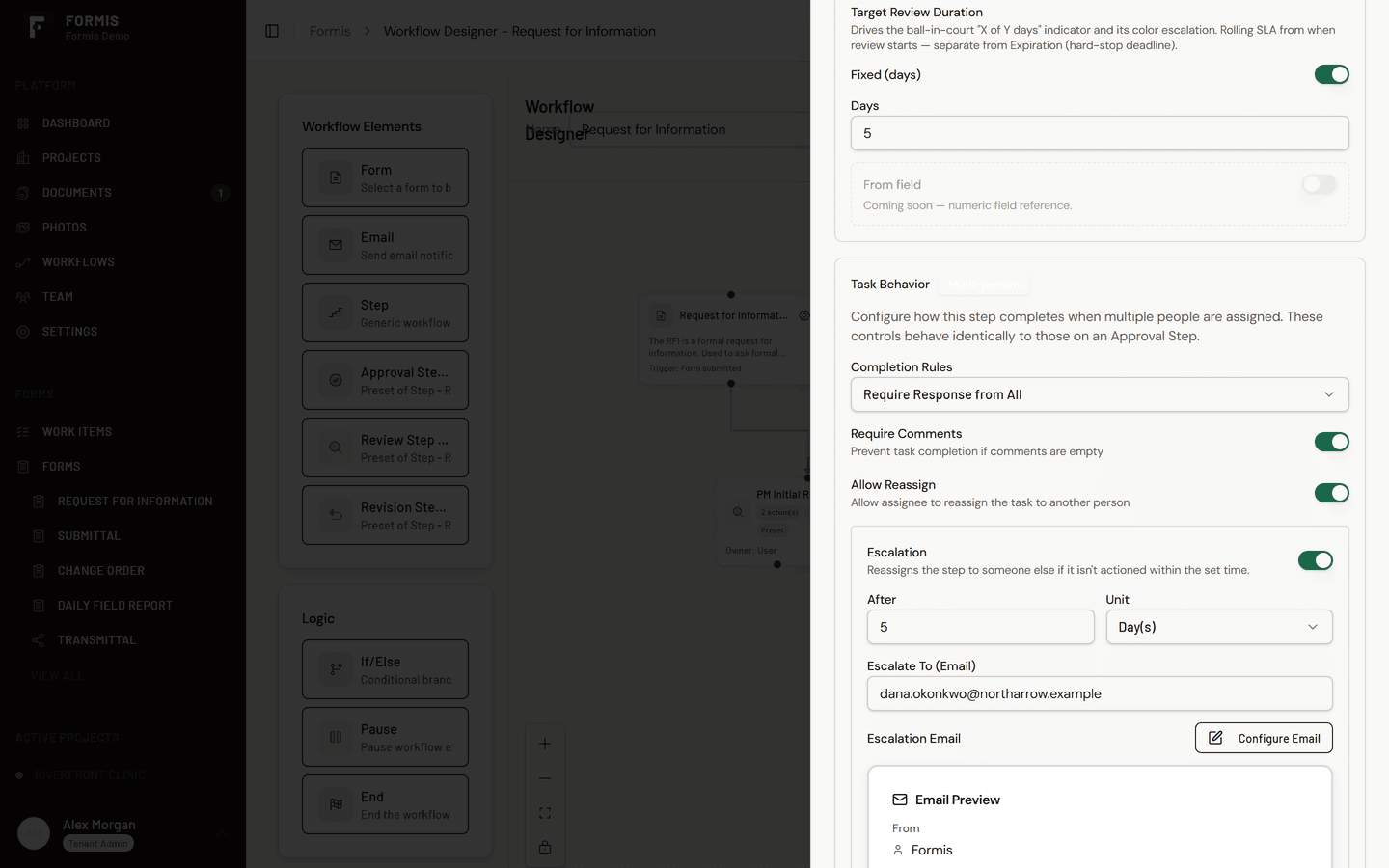
The target does two things. It sets the expectation, and it makes the wait visible: the submission shows whose court the form is in and a day X of Y pill against the target, so a slipping review is obvious to anyone who can open the submission, not just the person it is waiting on.
On Maple Commerce Center, Jordan Lee sets a five day target on the RFI design review step. When John Reyes at True Line Concrete opens his RFI on day four, he can see it is with the design reviewers and is on day 4 of 5, without sending anyone a status email.
Allow reassignment
Turn on Allow Reassign for the step to let its assignee hand the task to someone else. A Manager or Tenant Admin can also reassign someone else's pending task when the same switch is on.
Reviews stop for human reasons: the named reviewer is on vacation, or the question actually belongs to a colleague. Reassignment keeps the step moving through those moments without a Manager rebuilding the workflow. The reassignment goes on the record, so Workflow Progress still shows who ended up responding.
When Dana Okonkwo at North Arrow Management is out for a week, she reassigns an in-flight review to a colleague, and the step continues with the new assignee notified.
Set escalation
Escalation is the automatic version: if the step is not actioned within the time you set (After and Unit), it reassigns the pending task to the person whose email you enter in Escalate To (Email). That address must match a user in your Formis tenant.
Use escalation on steps where silence is expensive. A review that would otherwise sit unnoticed in one queue moves to that escalation person, with the reassignment recorded, so the workflow recovers without anyone chasing it. Escalation is available when the step can resolve to more than one reviewer.
A common pattern pairs the two time settings: Target Review Duration that sets the visible expectation, and an Escalation window slightly past it, so the step first shows as running late, then moves.
Choosing between them
- Target Review Duration makes the timeline visible. Use it on every step that has a real deadline.
- Allow Reassign handles the planned and human cases: coverage, ownership, vacations. Turn it on wherever reviewers can be trusted to hand off responsibly.
- Escalation handles the silent cases: use it where a stalled step must recover automatically, like reviews that gate the schedule.