Send a transmittal
A transmittal in Formis is a packaged document send that records who received which files and collects acknowledgment. Open Forms, start a New Submission on the Transmittal form, review the detail page while lifecycle is Draft, then click Send transmittal so recipients receive an acknowledgment request by email.
This walkthrough uses the Transmittal form from your construction starter pack. Your Formis tenant's forms may use different fields and names because Formis forms are configured to how you run the work.
In our sample project, Maple Commerce Center, we create a transmittal to an architect who does not have a Formis seat, then send it so they can acknowledge from email.
A published Transmittal form must be on the project.
Create the transmittal submission
- Open Forms (
/form) and select your project if prompted (for example, Maple Commerce Center). - On the Transmittal card, click New Submission.
- Fill required fields on that form (recipients, subject, document references, and attachments as your Transmittal schema defines them).
- Submit through the form's workflow until Formis opens the transmittal detail page.
The detail URL looks like /projects/{projectId}/forms/{slug}/{formNumber}, with the transmittal number in the header.
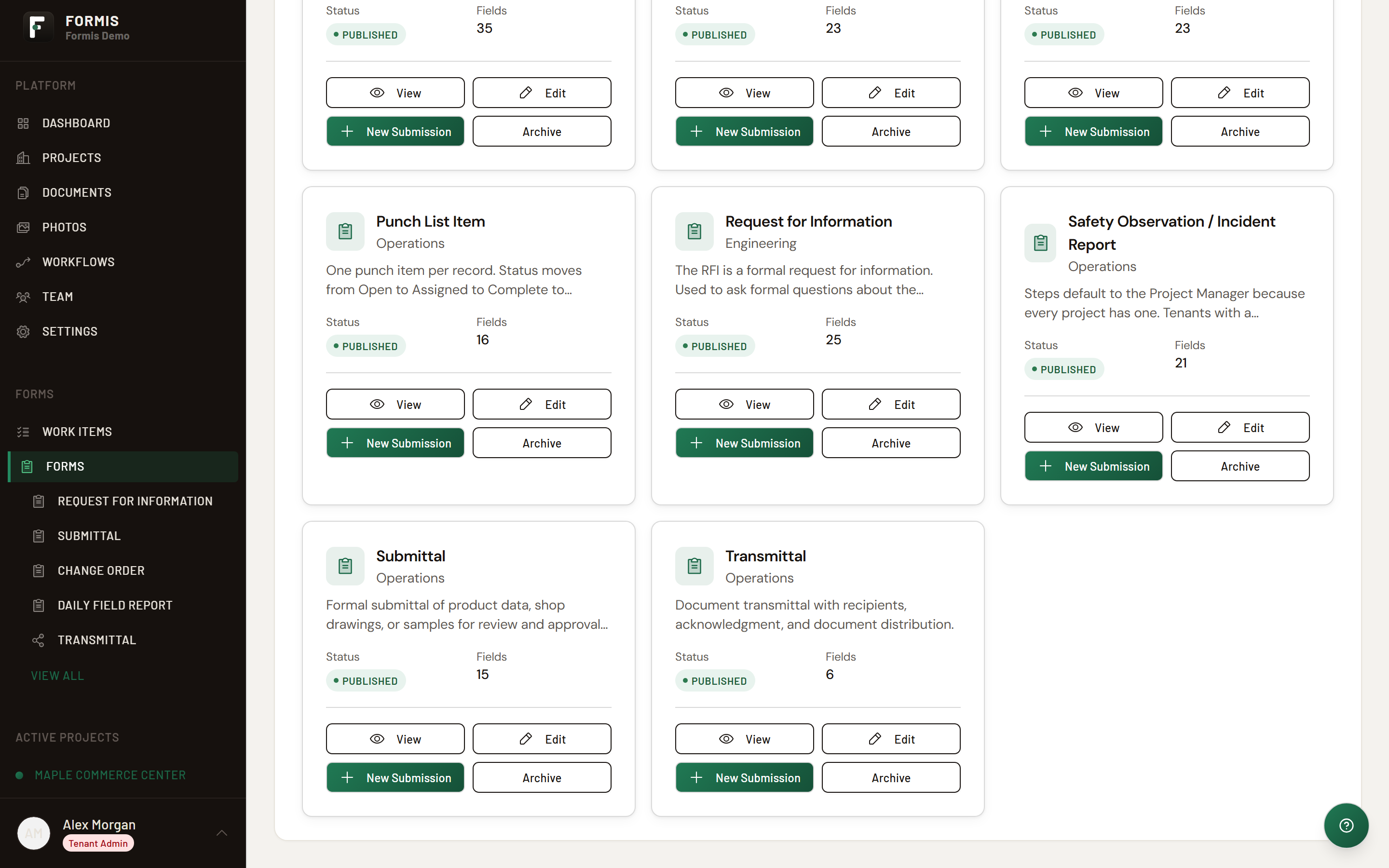
Review before send
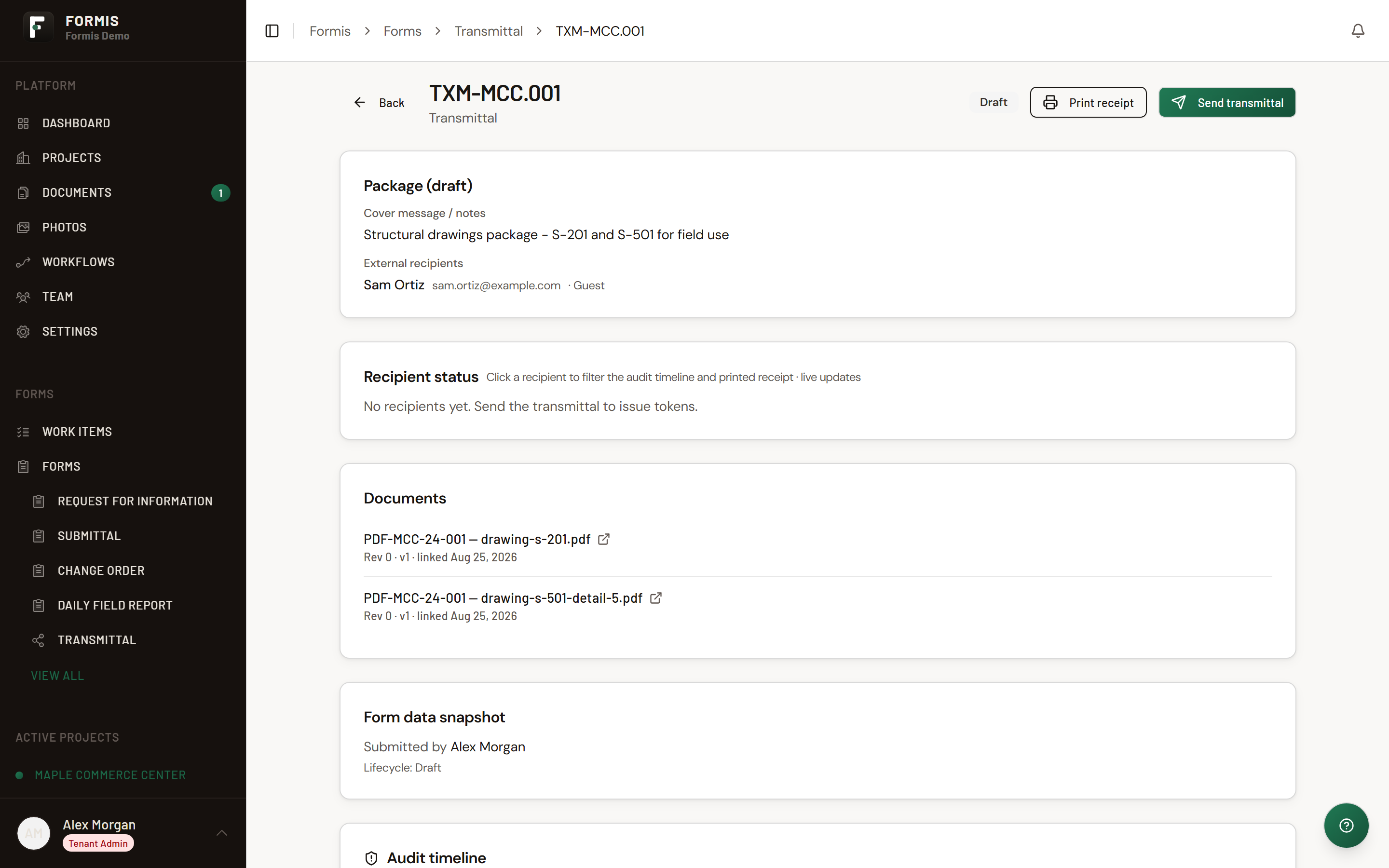
On the transmittal detail page:
- Confirm lifecycle status (the transmittal send-state badge) shows Draft when send is available.
- Review attached documents and metadata in the body panels.
- Use Print receipt if you need a PDF record before sending.
Send the transmittal
- When Send transmittal appears in the header toolbar (right side, next to Print receipt), click it. Tenant Admins and people with document-register project roles can send, and the lifecycle must be Draft.
- Formis validates recipients and attachments, then sends email to each recipient with an acknowledgment link.
- After send, the lifecycle badge shows Sent.
After send
When every recipient has responded and none remain pending, Formis closes the transmittal automatically and mirrors Closed on the parent form submission.
Void transmittal remains available to document-register managers while the transmittal is Sent, if your process requires canceling a send.
Open the parent form's register from Back at the top left to see all transmittals for that form.
If Send transmittal is missing, the record may not be in Draft, or your seat may lack document-register project role rights on that project.
Deploy the Transmittal form during Setup or from project settings so contributors see it in the sidebar.
Match recipient emails to companies on Team when you need audit trails across companies.