Share a document Project-wide
How do I share a document with everyone on a project? Mark it as Project-wide access when you upload, or turn it on later from the document detail panel, so every project member can open the file once it is published.
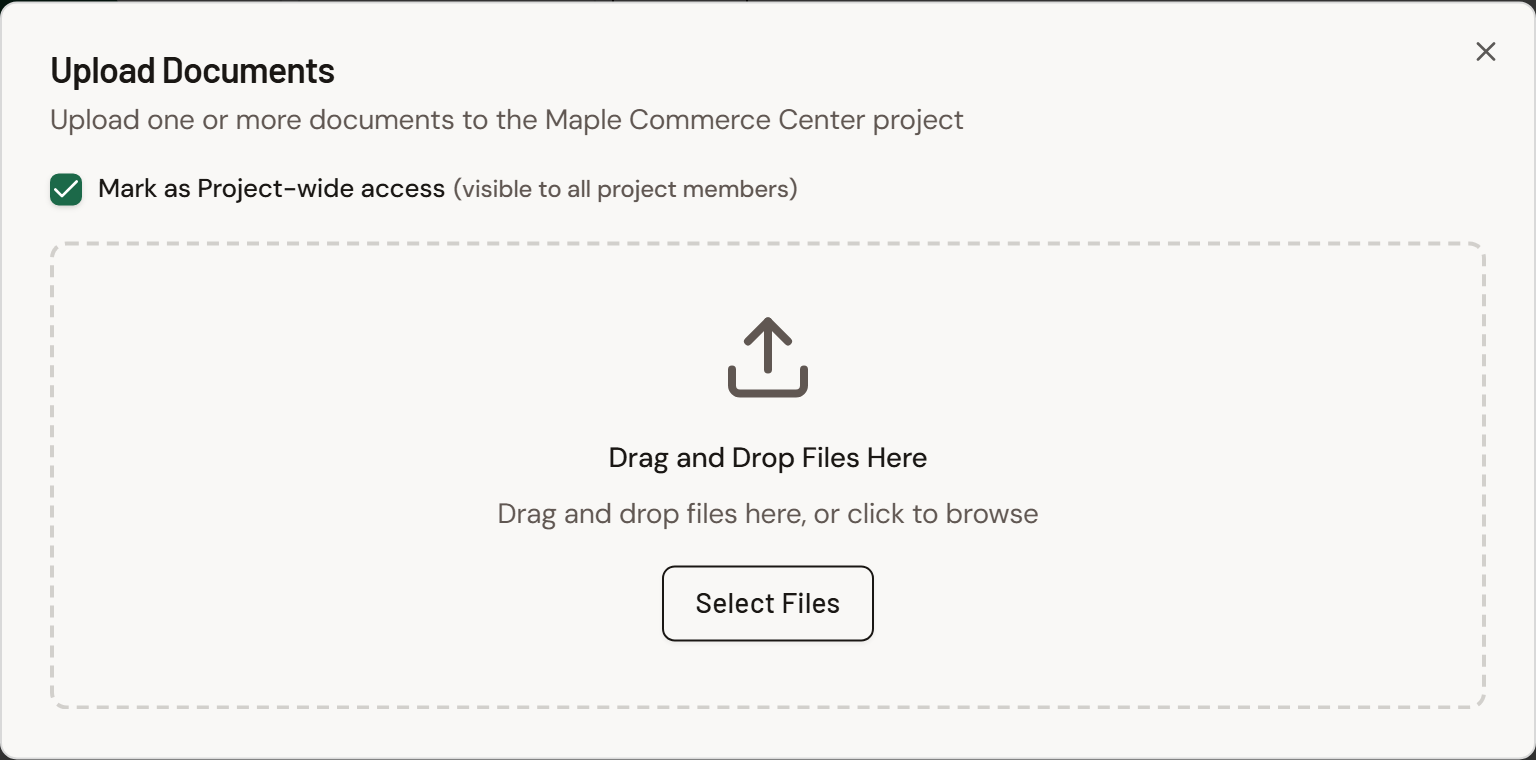
At upload, any Tenant Admin or Manager can check Mark as Project-wide access, including Managers on an outside company. After upload, a Tenant Admin, or a Project Manager, Assistant Project Manager, Backup Project Manager, or Document Controller on that project, can change Project-wide access (including those roles on an outside company).
In our sample project, Maple Commerce Center, Jordan uploads the site logistics plan and checks Mark as Project-wide access so True Line Concrete, North Arrow Management, and every other assigned company can open the same published file without a separate transmittal.
This article is written for Tenant Admins and Managers on the host company, the people who can change these settings. The document must belong to a project you can open in Documents.
For the Standing and Delivery full picture, see How Formis decides what you can see.
Four ways people see documents
| Way | Who can open it |
|---|---|
| Project-wide access | Everyone assigned to the project who can open Documents (after the file is published) |
| Same company | People whose company matches the upload stamp |
| Transmittal | Recipients granted by that package (including guest acknowledgment) |
| Pending (needs review) | The host company only; outside companies cannot see pending files even if Project-wide is on |
A document only needs one open door. Access Groups whitelist forms; they never filter document rows. See Control who sees what on a project.
Mark Project-wide when you upload
- Open Documents (
/document) and select your project if prompted (for example, Maple Commerce Center). - Start an upload.
- Check Mark as Project-wide access (visible to all project members).
- Finish the upload.
Any Tenant Admin or Manager can use that checkbox when uploading, including Managers on an outside company.
Change Project-wide after upload
- Open the document in Documents.
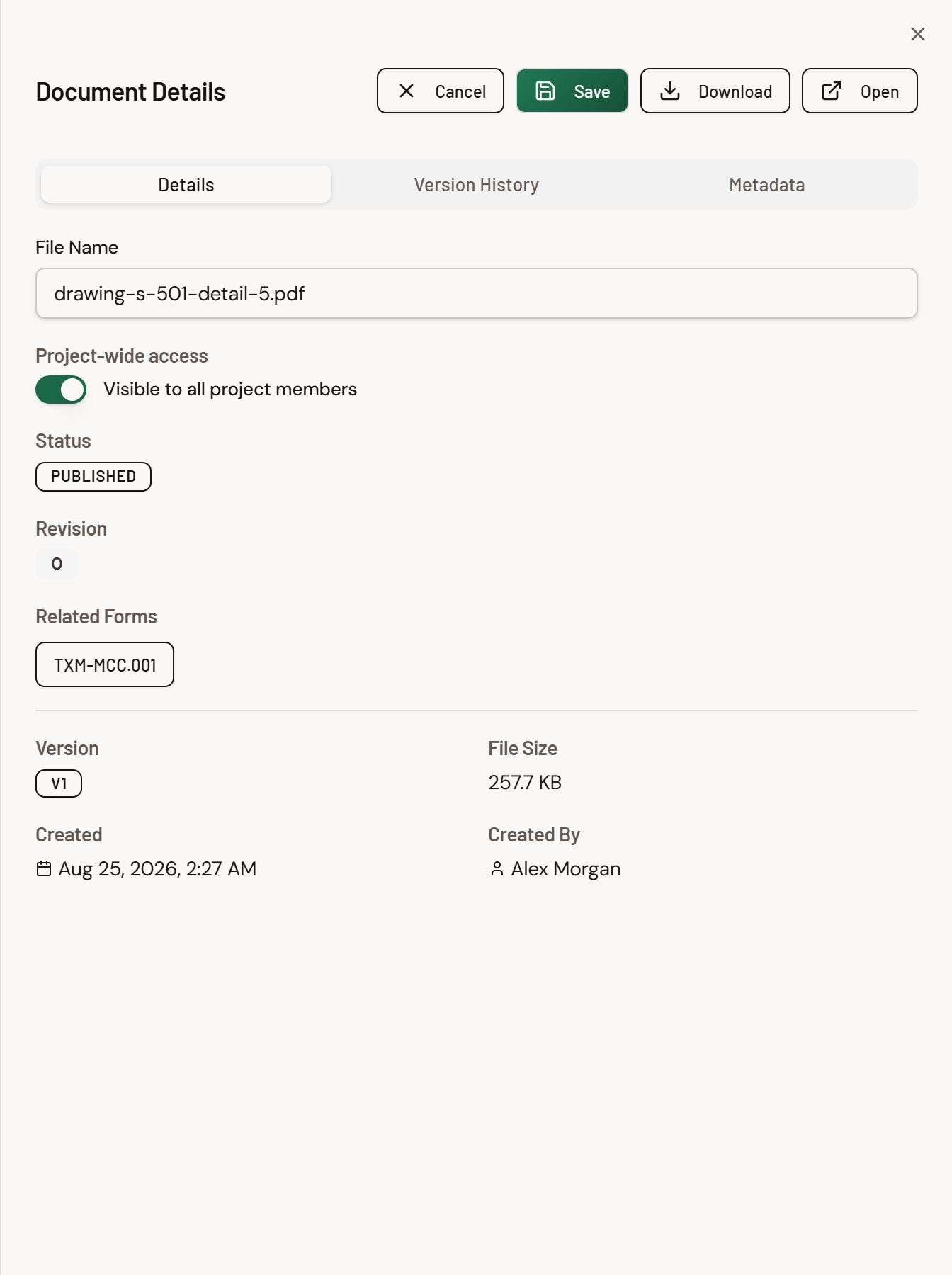
- Enter edit mode on the detail panel.
- Under Project-wide access, turn on Visible to all project members (or turn it off to return to restricted access).
- Save.
After upload, a Tenant Admin, or a Project Manager, Assistant Project Manager, Backup Project Manager, or Document Controller on that project, can change Project-wide access on the detail panel. That includes the same roles when the person is on an outside company (for example, Dana at North Arrow Management with Assistant Project Manager on Maple Commerce Center). Prefer the upload checkbox when you know the file should be shared from the start.
Boundaries
- Pending + outside: While a file is pending review, outside companies cannot see it. Publish (or otherwise clear pending) before partners rely on Project-wide visibility.
- Access Groups: Never hide or show documents. Form menus stay separate from the document register.
- Not a transmittal: Project-wide does not collect acknowledgment. Use Send a transmittal when you need a packaged send with acknowledgment.