Set up the document register
The document register is the Documents page where your project stores and reviews files. Document Control is the Pro-or-higher capability that routes new uploads into Needs Review until a Document Controller or other register manager publishes or returns them. Enable it in Project Settings, then create transmittals from published files.
In our sample project, Maple Commerce Center, we enable Document Control, assign Jordan as Document Controller, publish drawings from Needs Review, then bulk-create a transmittal to the architect.
This article is written for Tenant Admins and Managers on the host company, the people who can change these settings. Document Control requires Pro or higher.
| Register outcome | How you get it |
|---|---|
| Open the register | Documents (/document) |
| Turn on review queues | Project Settings → Documents → Enable Document Control (Pro or higher) |
| Who can manage the queue | Document Controller, Project Manager, Assistant Project Manager, Backup Project Manager (host company; Document Controller needs Manager or Tenant Admin seat) |
| Publish or return uploads | Needs Review tab actions by a register manager |
| Send a package from files | Select published files → Create Transmittal |
| Share one published file to the project | Mark as Project-wide access (Share a document Project-wide) |
For the Standing and Delivery full picture, see How Formis decides what you can see.
Where is the register?
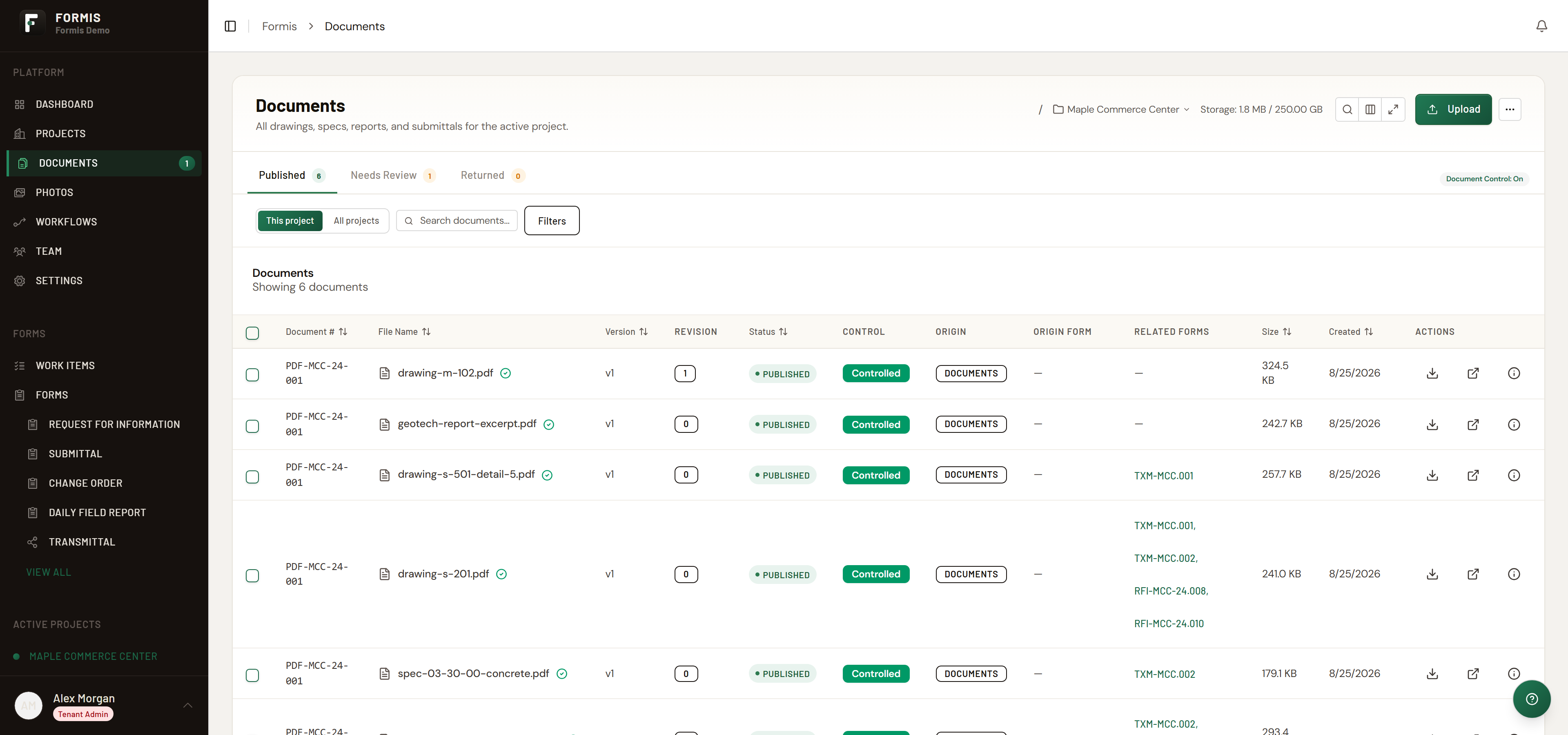
Open Documents (/document). That page is the project document register. When Document Control is on, you see tabs such as Published, Needs Review, and Returned, plus a badge Document Control: On or Document Control: Off.
Enable Document Control
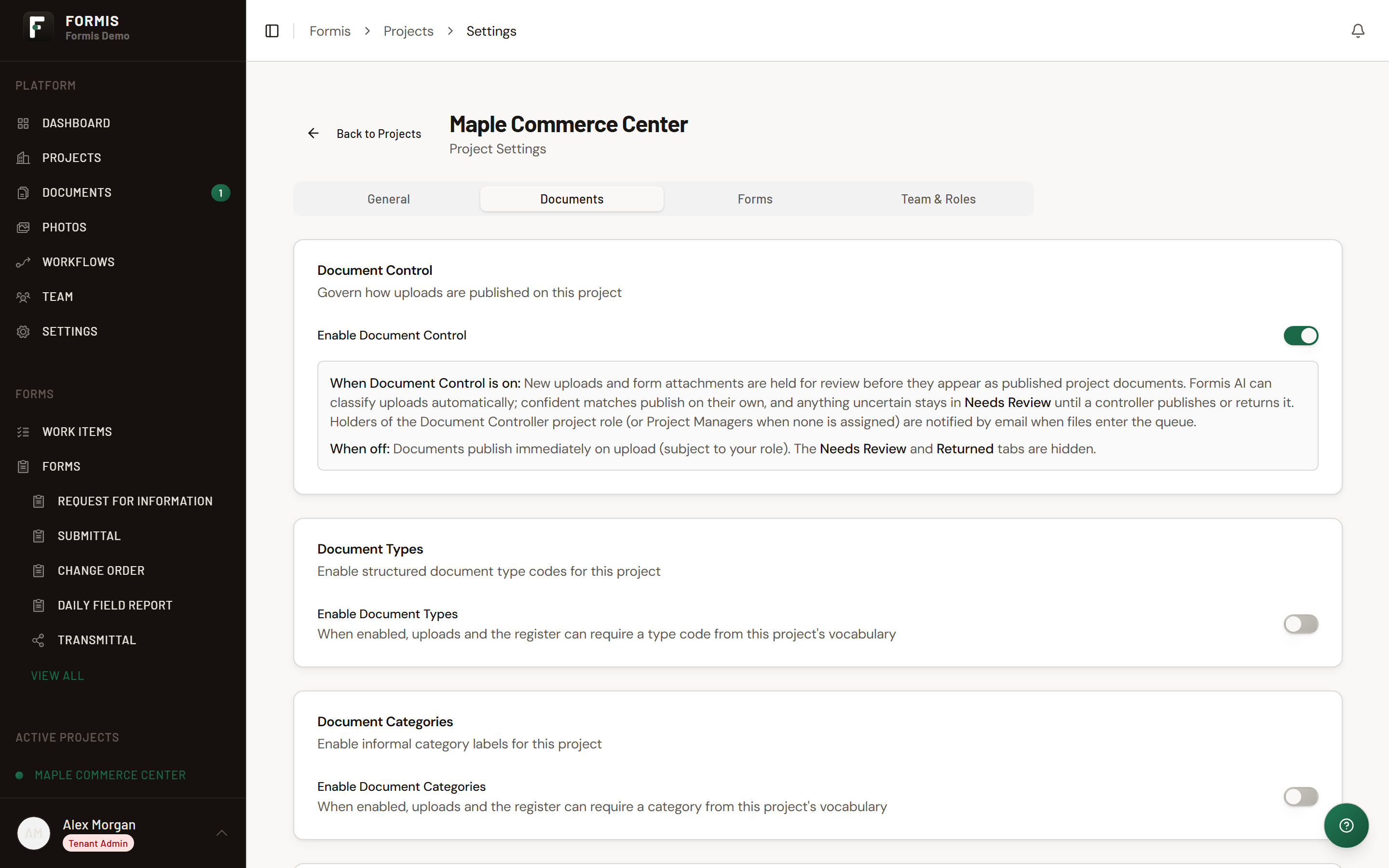
- Open Project Settings for your project (for example, Maple Commerce Center).
- Open Documents.
- Turn on Enable Document Control.
New uploads enter review until a register manager publishes or returns them.
Who manages the register?
Holders of document-register project roles (Document Controller, Project Manager, Assistant Project Manager, Backup Project Manager) manage the queue on the host company. Document Controller requires a Manager or Tenant Admin seat and the host company. If no Document Controller is assigned, pending documents route to Project Managers.
Versions and categories
Open a document to review category metadata and version history. Use Add new version when replacing a file. Uploaders and register managers can add versions per product permissions.
How transmittals hang off the register
- On Documents, select published files.
- Use Create Transmittal (bulk) to start a package from the register.
- Complete and send the transmittal so recipients receive acknowledgment access. See Send a transmittal and Guest acknowledgment without a seat.
Mark as Project-wide access shares a published document across the project. It is separate from Document Control on/off and from category badges. See Share a document Project-wide.