How Formis decides what you can see
Formis decides what you can see based on two things: Standing and Delivery.
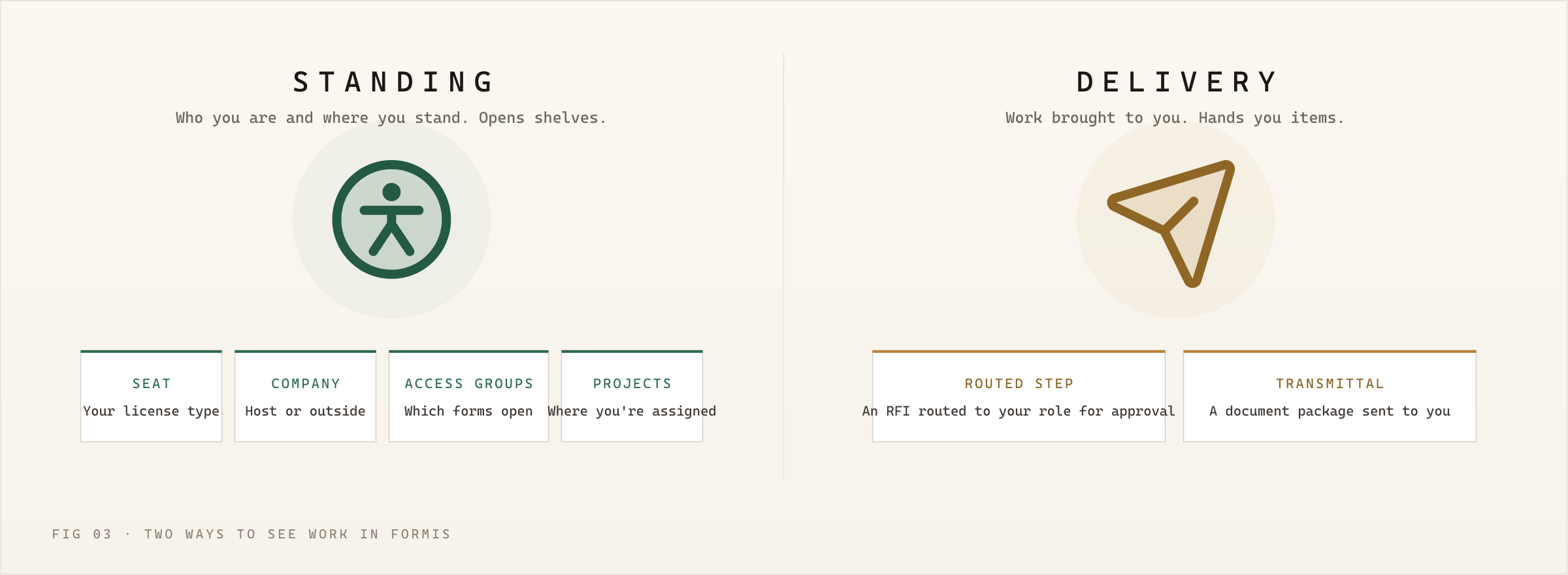
Standing is who you are and which shelves you can reach: your seat, your company, your Access Groups, and the projects you are assigned to. Delivery is work handed to you (a routed workflow step or a transmittal) even when Standing alone would not open that shelf.
In our sample project, Maple Commerce Center, John at True Line Concrete reaches RFI and Daily Field Report shelves through Standing. Dana at North Arrow Management does not see True Line's RFIs by Standing alone, but a routed Assistant Project Manager step can deliver a specific RFI to her.
What is Standing?
Standing is the set of shelves Formis opens for you from your seat, company, Access Groups, and project assignments.
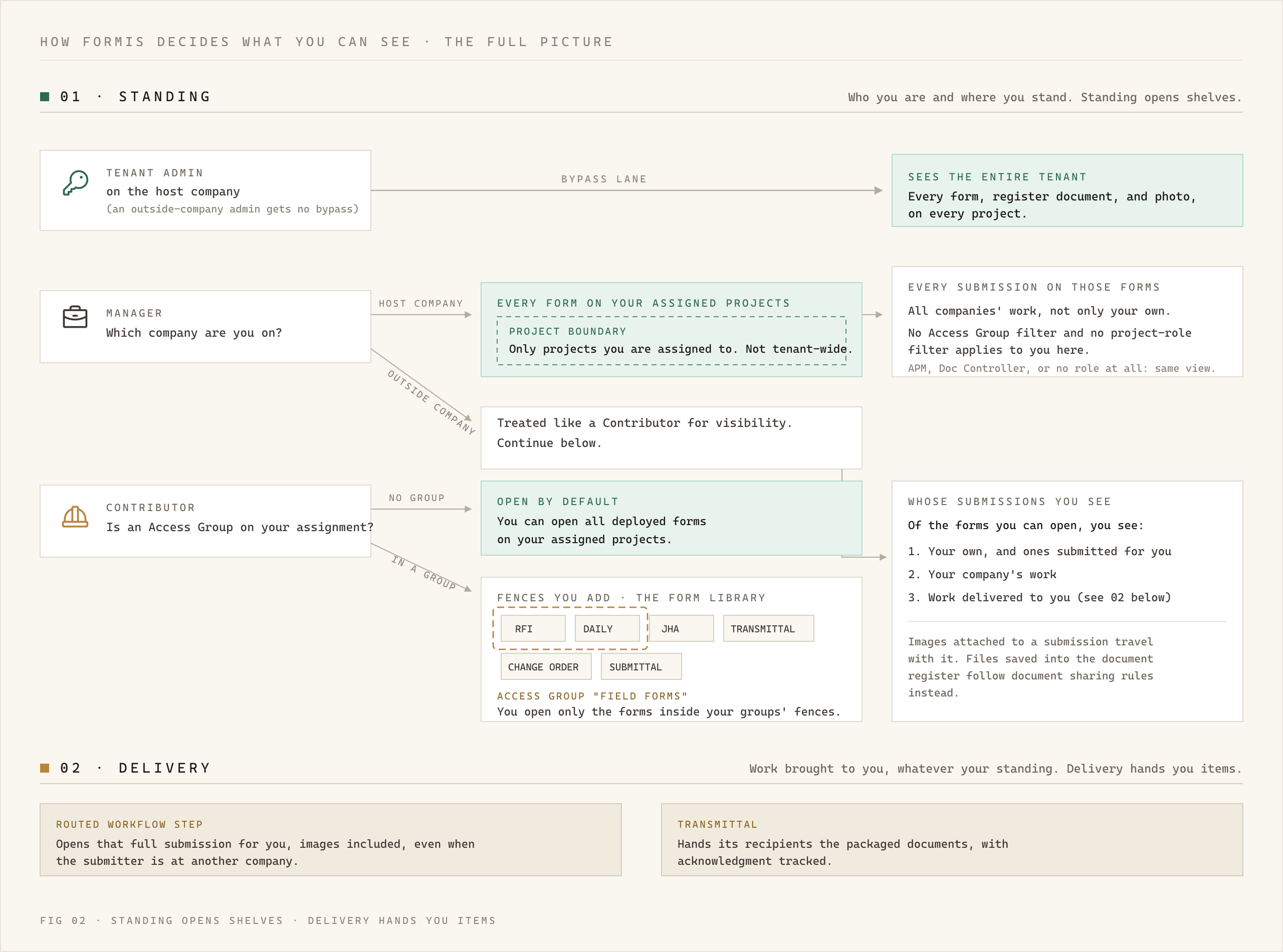
- A Tenant Admin on the host company sees every form, register document, and photo across your Formis tenant (V9). An outside-company Tenant Admin does not get that bypass.
- A Manager on the host company sees every form on projects they are assigned to; Access Groups do not limit them there (V2). That view is project-bounded, not tenant-wide.
- A Manager at an outside company is treated like a Contributor for form visibility: Access Groups apply (V2).
- A Contributor (host or outside) opens forms allowed by Access Groups when a group is on the assignment, then sees submissions by own / submitted-for / reviewer / same-company rules (V2, V8).
For the one-person lever picture, see Control who sees what on a project (FIG 01).
What is Delivery?
Delivery hands you specific items even when Standing would leave that shelf closed.
- A routed workflow step opens that full submission for you, including images attached to it, even when the submitter is at another company (V5, V6).
- A transmittal hands its recipients the packaged documents and tracks acknowledgment.
Step permissions still govern whether you can edit fields or act; Delivery is what opens the record for you to see.
Can people at different companies see each other's RFIs?
No by Standing alone across companies. Same-company visibility stays inside one company (for example, John and Greg at True Line Concrete share each other's allowed RFIs; Dana at North Arrow Management does not see True Line's RFIs through Standing).
Yes when Delivery applies: if a workflow step routes to Dana's project role, she can open that full submission, images included (V6), even though True Line and North Arrow are different companies.
Tenant Admins and Managers on the host company configure seats, companies, Access Groups, and workflow assignees from Team, Project Settings, and Workflows.
What if I'm not in any Access Group?
If your project assignment has no Access Group tag, form access is open by default: you can open deployed forms on projects you are assigned to, then Standing still filters which submissions you see (own, same company, and Delivery) (V8).
If you are in an Access Group whose form list is empty, that fence is closed by default: you do not open any forms through that group (V8).
A Tenant Admin or Manager on the host company assigns Access Groups in Project Settings.
What about images and files on a submission?
- Images attached to the submission travel with it: if you can open the submission, you can open those images (V5).
- Files promoted into the document register follow document sharing rules (company, Project-wide, transmittal, pending), with a reviewer carve-out while an active review window links the file (V5).
What about Photos?
- Photos linked to a form submission follow that submission's visibility (same gate as opening the form) (V7).
- The Photos library also includes direct uploads (not tied to a form). Those use project assignment and company rules; elevated host-company Manager and Tenant Admin seats see direct uploads more broadly in the gallery (V7).
What if I see "This form submission isn't viewable by you"?
That locked message means the submission exists, but your Standing and Delivery do not currently open it for you. It is not the same as a submission that was deleted or never existed — those show a plain not-found message instead.
Common reasons: you are not on the project, Access Groups fence the form, company scoping keeps another company's work private, or nothing has been Delivered to you (no routed step or other handoff) for that record.
If you believe you should have access, contact a Tenant Admin or Manager on the host company. For the full Standing and Delivery picture, keep reading this article from the top.