Understand seats and project roles
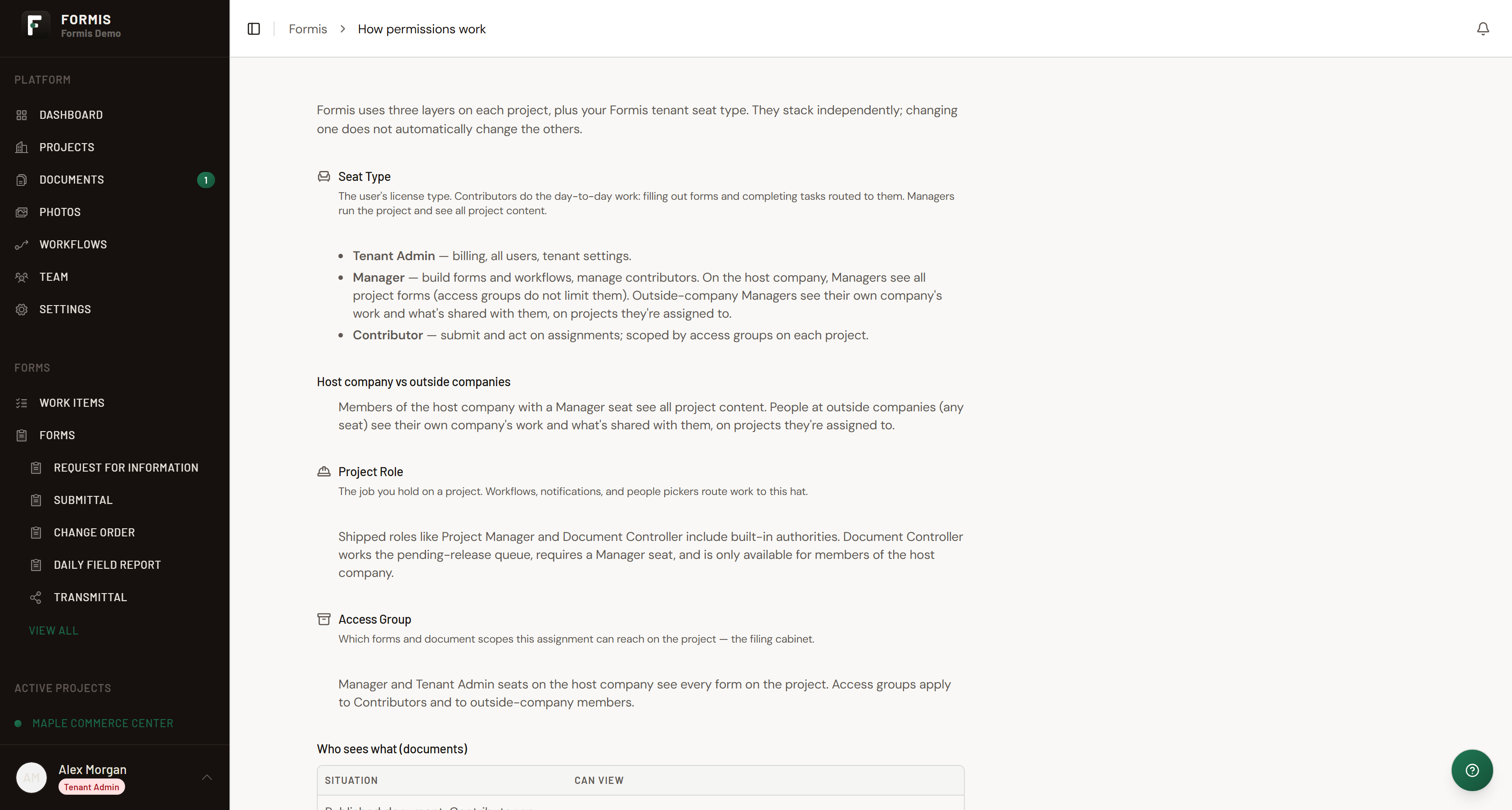
A seat in Formis is the license type for your Formis tenant assigned to each person (Tenant Admin, Manager, or Contributor). A project role is the job someone holds on one project, such as Project Manager. Assign seats on Team; assign project roles on the project after invite or during setup.
In our sample project, Maple Commerce Center, we give Jordan a Manager seat and the Project Manager project role so they can run RFIs, while keeping Document Controller (the document-register manager role) on someone on the host company.
This article is written for Tenant Admins and Managers on the host company, the people who can change these settings.
The three seats
Every person in your Formis tenant has one seat. The invite dialog labels them:
| Seat | What it covers |
|---|---|
| Tenant Admin | Billing, all users, tenant settings, and full visibility across your tenant. |
| Manager | Build forms and workflows, manage contributors, and (on the host company) see all forms on projects they are assigned to. |
| Contributor | Day-to-day submit and act work, scoped by Access Groups (which form definitions they may open) on each project. |
Seats are the license layer. They are separate from the project role someone holds on a given project (for example, Maple Commerce Center).
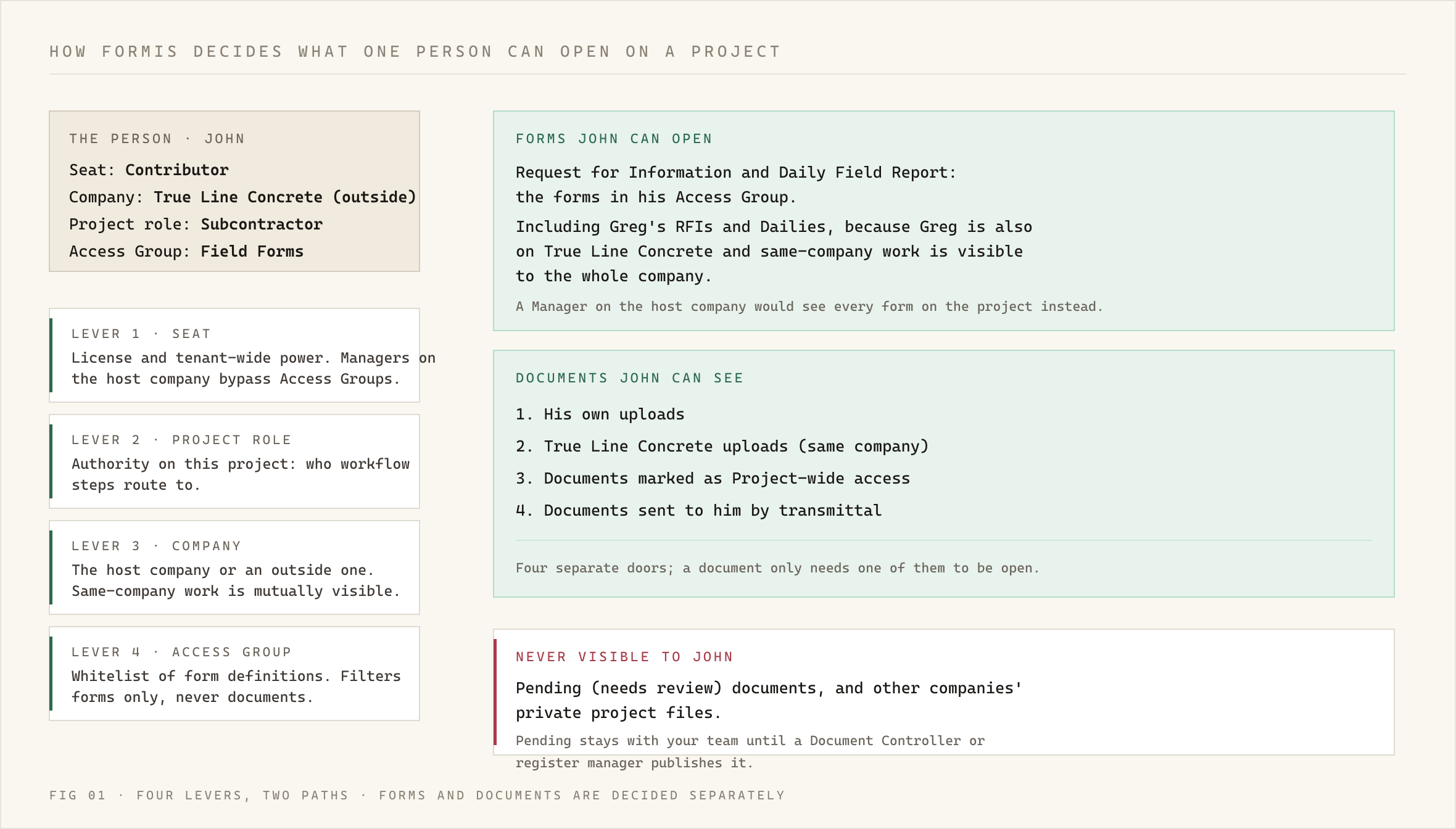
For the Standing and Delivery full picture, see How Formis decides what you can see.
Project roles Formis ships
Built-in project roles (exact display names):
- Project Member
- Project Manager
- Assistant Project Manager
- Backup Project Manager
- Document Controller
- Project Engineer
- Engineer of Record
- Architect
- Owner's Rep
- Subcontractor
- Inspector
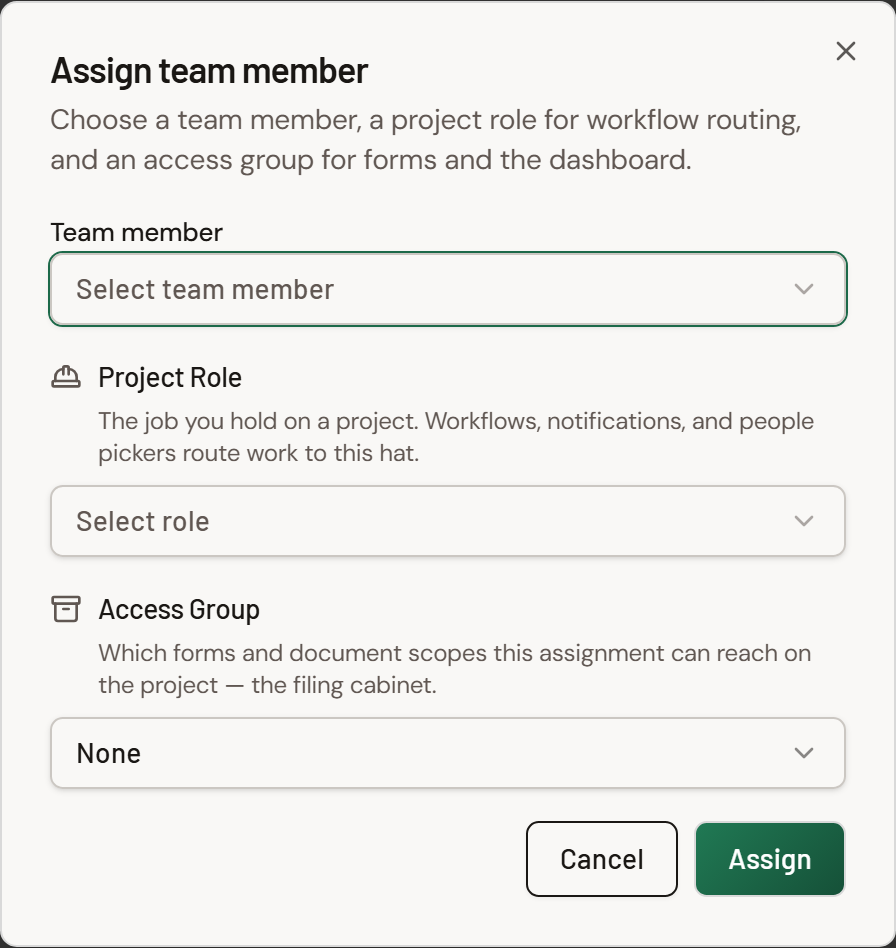
Shipped roles such as Project Manager and Document Controller carry built-in authorities on the project. You assign them from the project team tools (and Standard project roles in settings when you manage the registry).
How seat and role compose
Some project roles require a Manager or Tenant Admin seat before you can assign them:
- Document Controller
- Project Manager
- Assistant Project Manager
- Backup Project Manager
If you try to assign one of those roles to a Contributor, Formis shows: "{Role} requires a Manager seat. Assign a Manager seat before giving this project role."
Other built-in roles (for example Owner's Rep, Subcontractor, Inspector) do not require a Manager seat by themselves. Pair them with the seat that matches how much product access the person needs.
Why would someone at an outside company have a Manager seat?
An outside Manager seat lets a partner lead their firm's people and act on workflow steps assigned to their project role, without making them part of the host company.
In our sample project, Maple Commerce Center, Dana works for North Arrow Management (the owner's-rep CM firm). We give Dana a Manager seat on that outside company and the Assistant Project Manager project role.
Workflow steps assigned to Assistant Project Manager route to Dana, and she can approve or complete them. She can invite her firm's Managers and Contributors and manage project team assignments when she holds Assistant Project Manager (or Project Manager / Backup Project Manager). Access Groups still scope which forms her firm opens. Pending document review stays with the host company; Dana does not run the pending register queue. For how a routed step can still hand Dana a specific submission (Delivery), see How Formis decides what you can see.
Document Controller and outside companies
Document Controller is available for members of the host company. If someone belongs to an outside company, Formis blocks that role with: "Document Controller is only available for members of the host company. Assign that role to someone on the host company, or mark this company as the host company."
Owner's Rep, Subcontractor, and similar outside-facing roles remain available for partner companies. See Control who sees what on a project and Work with outside partners on a project.
Add a custom project role
Tenant Admins can add custom project roles from Settings → Project Roles (/settings/project-roles).
- Open Project Roles.
- Click Create Role.
- Enter **Key ***, **Display Name ***, optional Description, and **Color ***.
- Under Record permissions, set the record flags that apply.
- Save.
Custom roles appear in the project team assignment picker and can be used as workflow step assignees. They do not receive built-in Project Manager, Assistant Project Manager, Backup Project Manager, or Document Controller authorities (for example Project-wide detail toggle and document-register manager powers stay on those fixed role keys).
Open How permissions work (/help/permissions) in the product for the same seat, role, company, and Access Group model in a short in-app explainer.