Invite your team and assign seats
Invite people from Team so they can sign in to your Formis tenant with a seat (their license type), a company, and optional project access. Open Team, click Invite User, fill name and email, choose Tenant Admin, Manager, or Contributor, pick company and projects, then click Send Invitation.
This walkthrough uses the Request for Information (RFI) form from your construction starter pack. Your tenant's forms may use different fields and names because Formis forms are configured to how you run the work.
In our sample project, Maple Commerce Center, we invite Jordan Lee as a Manager so they can hold the Project Manager role and later approve RFIs.
Your company record must exist. Request for Information must be deployed to the project so workflow roles are known.
Tenant Admins invite anyone (Tenant Admin, Manager, or Contributor) and can check project access on the invite. Managers invite Managers and Contributors the same way, and can check project access on the invite. Only a Tenant Admin can invite another Tenant Admin.
After someone accepts, ongoing project team management from Project Settings is for Tenant Admins or Managers who hold a PM-class role on that project (Project Manager, Assistant PM, or Backup PM).
Invite someone from Team
- Open Team (
/team). - Click Invite User at the top right of the page.
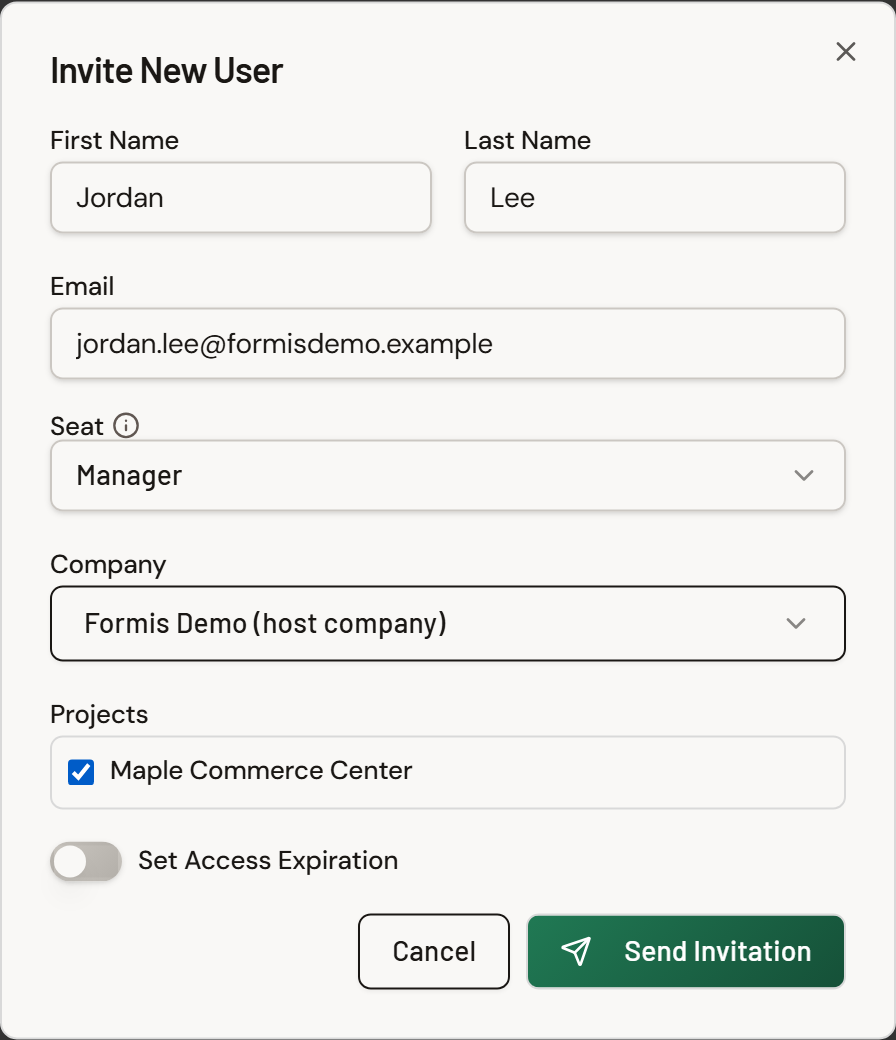
- In Invite New User, fill First Name, Last Name, and Email (for example, Jordan, Lee,
[email protected]). - Under Seat, choose Tenant Admin, Manager, or Contributor (only seats you are allowed to grant appear; for example, Manager). The seat is the person's license type: Contributors do day-to-day work; Managers run projects and see project content.
- If you chose Contributor, Formis reminds you to assign an Access Group (which forms they may open) after invite from Project Settings.
- Under Company, pick the company this person belongs to (defaults to the host company when one exists). Use Add Company in the picker when you need a new outside company first. See What companies are and how to use them. When you grant a Manager or Tenant Admin seat to someone on an outside company, Formis shows a note so you can confirm that's intended. For why an outside Manager is useful (for example Dana at North Arrow Management on Maple Commerce Center), see Understand seats and project roles or Work with outside partners on a project.
- Under Projects, check the projects they should join (for example, Maple Commerce Center). Selected projects are granted when the invite is sent.
- Optionally turn on Set Access Expiration, then set a duration in months or years (default 6 months when enabled). Use this when a subcontractor should lose login after a known end date.
- Click Send Invitation. Formis emails the person an invite link. On Pro and higher plans you can customize that invite email from Email Templates on Team; on Starter the system template is used.
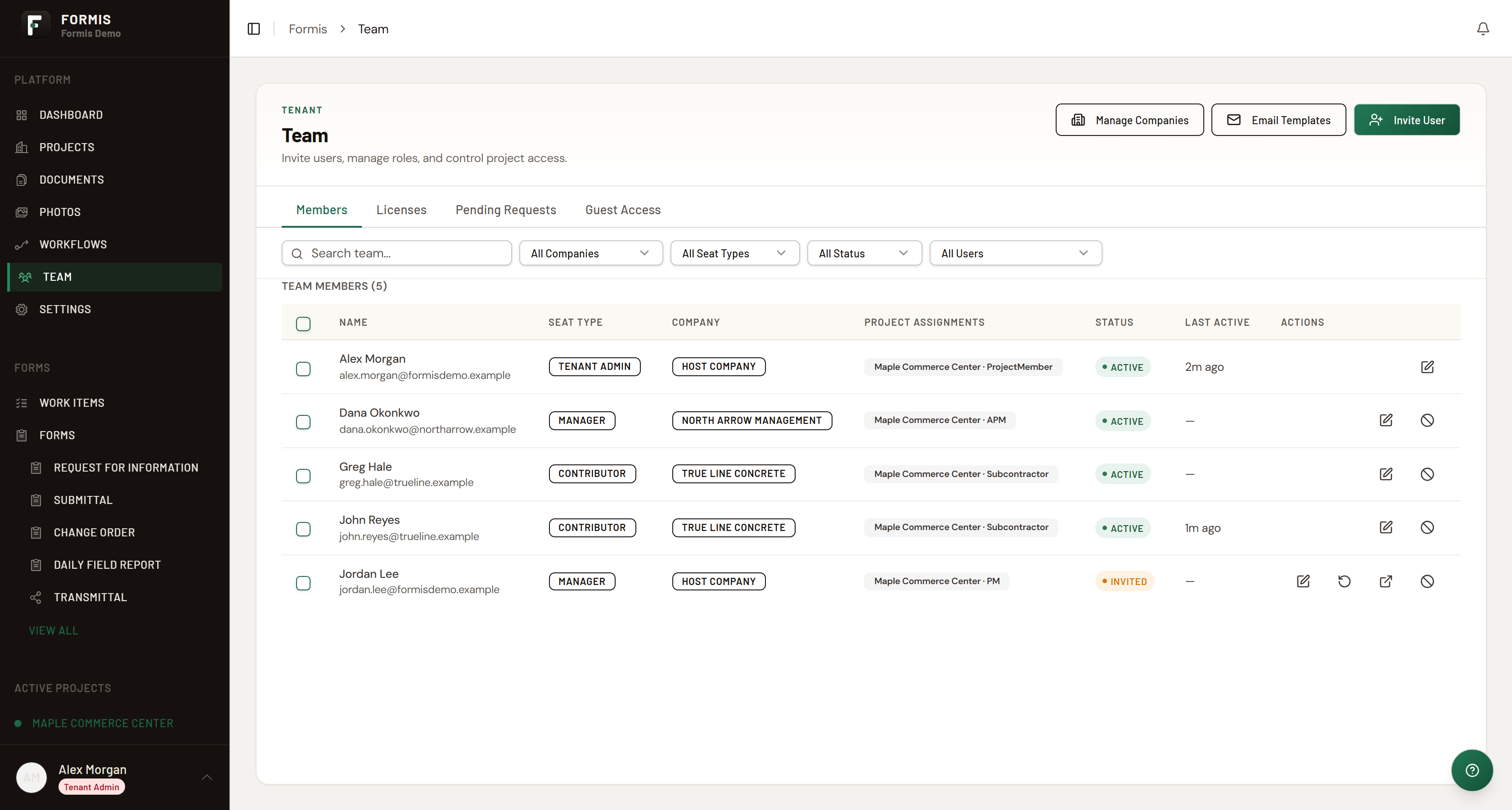
The new row appears in the team table with status Invited until they accept.
Access expiration (when you enable it) is a membership login cutoff: after that date the person can no longer sign in to this tenant. Default when enabled is 6 months. Example: a subcontractor rolling off Maple Commerce Center in three months. The invite link itself expires separately after 7 days; if the link expires before they accept, resend the invite from Team.
Grant project access and roles after invite
If you checked projects on the invite, those grants are already in place. To adjust roles after the person accepts:
- Open Project Settings for your project (for example, Maple Commerce Center).
- Open the team tab and add or edit their assignment.
- Set the Project Manager workflow role (the project role that form expects for that step, or whichever role your RFI workflow uses).
You can also assign roles during setup before everyone has accepted. See Run the setup wizard.
Assign workflow roles during setup
When roles are still open from forms you just deployed, fill them on the Invite your project team sheet in Run the setup wizard. That keeps setup invites and Team invites aligned without repeating the wizard steps here.
Manage existing members
On Team, use search and filters (Role, Status, Project) to find people. From each row you can edit access, resend an invite, or disable a user.
Customize the project-invite template from Email Templates on Team when your plan includes custom email templates (Pro and higher).
Workflow roles on a project are separate from the seat on the invite. A Contributor seat can hold a workflow role like Project Manager once they are assigned on the project.