Show or hide fields with conditions
You can make fields conditional: a target field stays hidden until another field matches a rule you define. In Formis that rule type is Show/Hide Field, configured on the form's Conditions tab (or from a field's visibility rule).
On Maple Commerce Center's daily report, Delay details stays hidden until Delay occurred is Yes.
You need a Tenant Admin or Manager seat and a form with the controlling field and the target field already on the canvas.
How do I hide a field based on another field's value?
Use a Show/Hide Field condition. Pick the controlling field, an operator, and the comparison value, then choose whether to Show fields or Hide fields for the targets.
- Open the form in the Form Designer.
- Open the Conditions tab (or Form Settings → Conditions).
- Add a condition. Choose type Show/Hide Field.
- Pick the controlling field (for example, Delay occurred).
- Choose an operator that matches the field type (for a Yes/No choice, Is Equal To is typical) and the value (for example, Yes).
- Under the then-action, choose Show fields or Hide fields and select the Target fields (for example, Delay details).
- Save and publish.
Fields listed as show targets start hidden until a matching rule applies. Prefer Show fields when the target should appear only for a matching value. Prefer Hide fields when the target is normally visible and should disappear for a matching value.
Can I make fields conditional?
Yes. The steps above are the full path. Operators available (labels): Is Equal To; Is Not Equal To; Is Filled; Is Not Filled; Contains; Does Not Contain; Starts With; Ends With; Matches Regex; Greater Than; Less Than; Greater Than Or Equal; Less Than Or Equal; Between; Before; After; On; Has Any Of; Has All Of; Has None Of. The list narrows by field type.
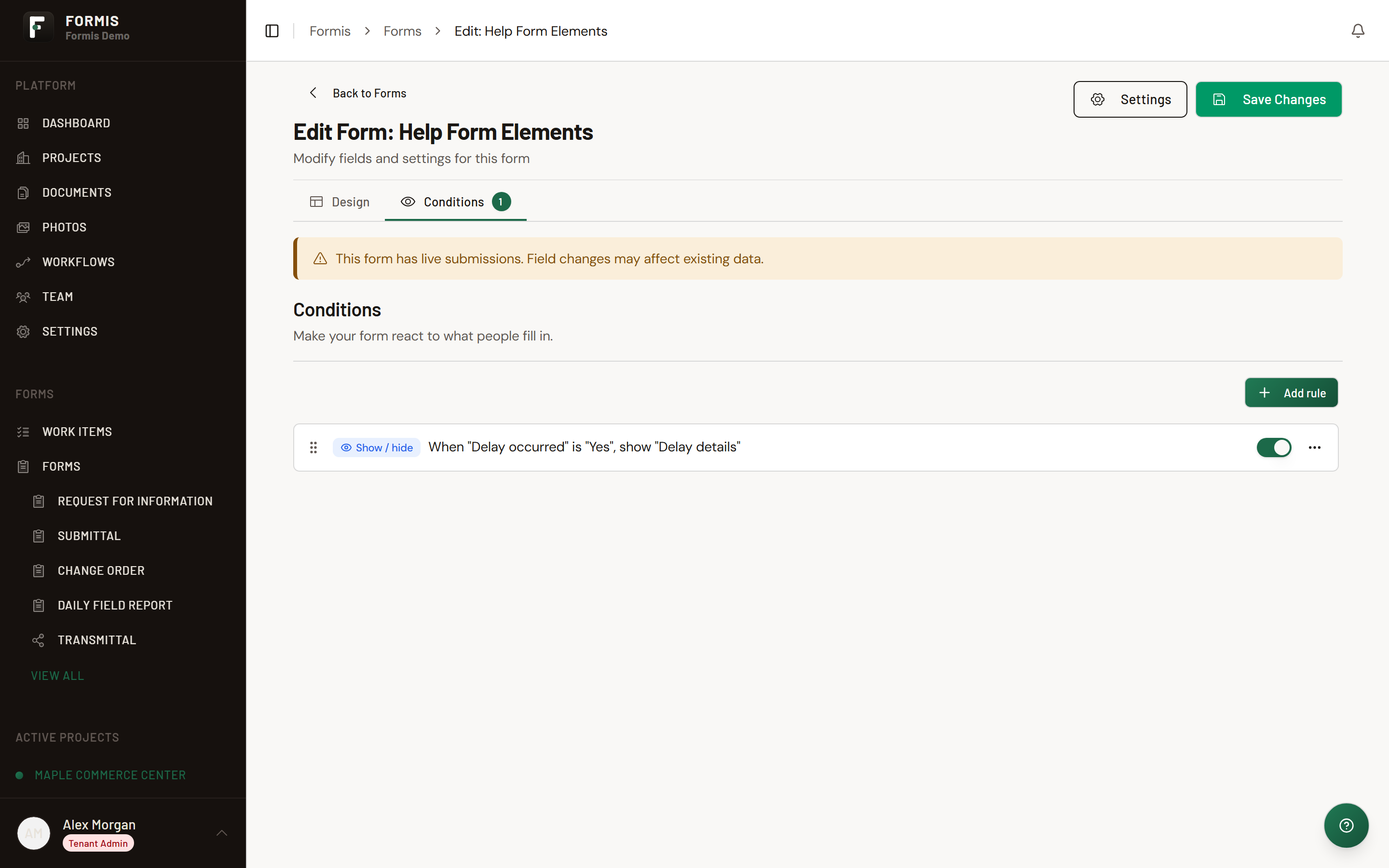
How do I show a field only when a choice equals a value?
Example: show Delay details when Delay occurred equals Yes.
- Controlling field: Delay occurred (Single Choice or similar)
- Operator: Is Equal To
- Value: Yes
- Action: Show fields → Delay details
To hide when equal instead, use Hide fields with the same operator and value.
How do I hide a field when another field is empty or filled?
- Is Not Filled: rule matches when the controlling field is empty.
- Is Filled: rule matches when the controlling field has a value.
Combine with Show fields or Hide fields depending on whether the target should appear only after someone answers, or disappear once they answer.
How do I hide or show based on a number?
For Number or Spinner controlling fields, use Greater Than, Less Than, Greater Than Or Equal, Less Than Or Equal, or Between, plus the comparison number(s). Example: show Overtime reason when Hours is Greater Than 8.
How do I hide or show based on a date?
For Date controlling fields, use Before, After, On, or Between. Example: show Weather delay notes when Work date is Before a cutoff you set.
How do I hide or show based on multi-select choices?
For Multiple Choice, Checklist, or Configurable List style multi-select, use Has Any Of, Has All Of, or Has None Of with the option set you care about.
Which operators apply to which field types?
- All fields: Is Equal To; Is Not Equal To; Is Filled; Is Not Filled
- Text (Short Text, Long Text, Email, Dynamic Textbox): Contains; Does Not Contain; Starts With; Ends With; Matches Regex
- Number and Spinner: Greater Than; Less Than; Greater Than Or Equal; Less Than Or Equal; Between
- Date: Before; After; On; Between
- Multiple Choice, Checklist, Configurable List: Has Any Of; Has All Of; Has None Of
What other condition types exist?
On the Conditions tab you can also add:
- Update/Calculate Field: set, copy, or calculate field values when rules match
- Enable/Require/Mask Field: enable, disable, require, optional, or apply input masks
- Change E-mail Recipient: route notification emails based on rules
This article focuses on Show/Hide Field, which controls visibility.
How do I hide an entire section and everything inside it?
Select the Section in Target fields. Formis applies the rule to every field inside that section (including nested sections). When no fields in a section are visible, the section header disappears too.
- Open the form in the Form Designer and go to the Conditions tab.
- Add a Show/Hide Field condition with your rule (field value or Workflow Status).
- Under Then, choose Show fields or Hide fields.
- In Target fields, check the Section title (for example, Official Response). That selects all child fields at once.
- Save and publish.
Show fields targets start hidden until the rule matches. That is the usual pattern for "keep this whole section hidden until something is true."
You can also pick individual fields under a section if only part of the section should react. The condition summary shows all of "Section Title" when every field in a section is targeted.
Note: Section elements do not have a quick visibility shortcut in the designer property panel. Build section-wide rules on the Conditions tab.
How do I show or hide fields based on workflow status?
Use Workflow Status as the rule Source. This works on submitted items while they move through a bound workflow, not by individual step name.
Before you start: the form must have a workflow bound to it. Until then, Workflow Status is disabled in the source picker with the message: "Bind a workflow to this form to use status-based rules."
Workflow status values you can match
Formis derives one status string from the submission and its current workflow step:
- Draft: not submitted yet
- Submitted: submitted but not yet in an active workflow instance
- Under Review
- Awaiting Approval
- Revision Required
- On Hold
- Complete: workflow finished or terminated
Operators for Workflow Status
- Is Equal To / Is Not Equal To
- is any of / is none of (match one or more statuses)
Example: show a section only during review
Goal: keep Official Response hidden until the submission is Under Review.
- Bind a workflow whose review step uses Status Category Under Review (set on the step's General tab in the workflow designer).
- On the form Conditions tab, add Show/Hide Field.
- When → Source: Workflow Status → Is Equal To → Under Review.
- Then → Show fields → select the Official Response section (or its fields).
- Save and publish.
When someone opens the submission on that step, the section appears. On other statuses it stays hidden.
Can I match a specific workflow step by name?
No. Conditions use the derived Workflow Status category, not the step's display name or step id. If two steps share the same Status Category, conditions cannot tell them apart. Give each step the Status Category you want form rules to key off, and use distinct categories when you need different visibility.
See Configure routing and approvals for Status Category on workflow steps.
When do workflow status conditions run?
| Where | Workflow status seen by conditions |
|---|---|
| New submission fill (before submit) | Always Draft |
| Submission detail (after submit, in workflow) | Real derived status from the instance and current step |
| Form Preview | Conditions are not evaluated. Use a real submission to test workflow rules |
Workflow-driven show rules therefore appear after submit, when the item is on the matching workflow status. They do not reveal sections during first-time fill before submit.
Combining field rules and workflow status
One condition can require All rules match or Any rule matches across multiple rules. You can mix a field rule (for example, Delay occurred equals Yes) with a Workflow Status rule in the same condition when both must be true.
Fields used as rule sources cannot be hidden by the same condition (Formis strips them from the target list automatically).