Adding photos to a Task List item
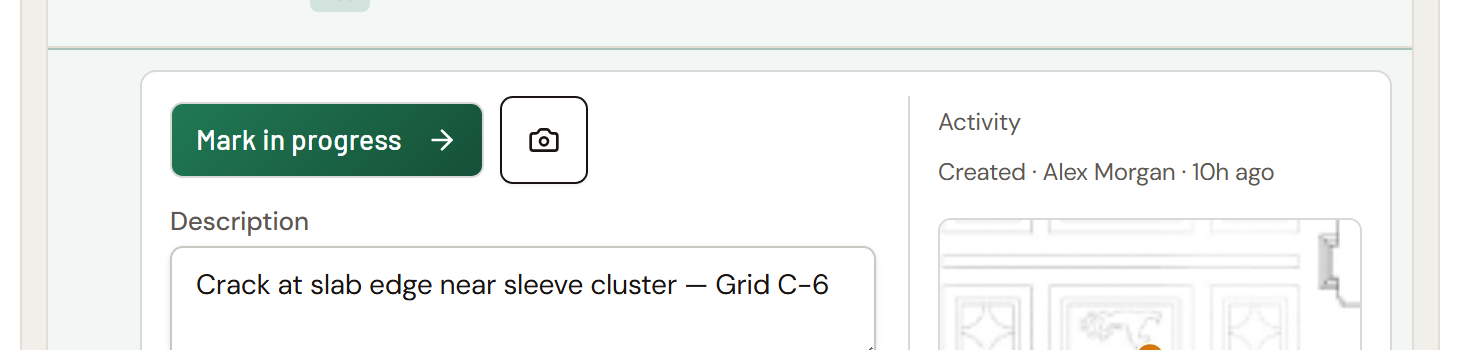
Any item in a Formis Task List widget can hold as many photos as you need. Open the item, tap the camera icon, and take or choose a photo. Each new photo is added to the item's photo strip. Nothing already there is replaced, so the "before" photo and the "fixed" photo stay side by side.
Photos are how a Task List item becomes evidence: a hazard as it was found, a defect before repair, and proof the work was done.
Which forms have photos
Photos are a column on the Task List widget that a form designer can include or leave out.
- Punch list and Safety observation starter templates include photos on every item.
- Action items ships without photos. A designer can add them.
Like every Task List setting, this is configuration, not a fixed feature of any template: add or remove the photo column on any form.
- Any custom form with a Task List can include them.
Attaching a photo
- Open the Task List item.
- Tap the camera icon.
- Take a photo or choose one from your device. On a phone, the rear camera opens directly.
The photo uploads and appears in the item's photo strip. Repeat as many times as you need. You can add photos while the form is still a draft or after it has been submitted.
Viewing photos
Photos show as a strip of thumbnails in the item's detail panel.
Tap any thumbnail to open it full-size. If the item has more than one photo, move between them in the full-size view. From there you can also mark the photo up; see Marking up a Task List photo.
From a drawing: if the item is pinned, its pin shows a small camera badge when it has photos. Tap the pin to open the item in a side panel (a bottom sheet on a phone) with the same photo strip, so you can see the photos without leaving the drawing. See Pinning a Task List item to a drawing.
What's recorded with each photo
Every photo keeps:
- When it was taken.
- Where the item was pinned at that moment, if the item is pinned to a drawing. This is a permanent record: if the pin moves later, the photo still shows the drawing and spot it was taken against.
Every Task List photo also appears in the project's Photos library, linked to the form it came from, so you can find it later without remembering which submission it's on.
Who can add photos
You can add a photo to an item if either of these is true:
- You can add attachments to that submission, or
- You are the item's assignee.
The second rule means a subcontractor assigned to a punch item can attach a "fixed" photo to their own item, even if they can't edit the rest of the submission.
Common questions
Is there a limit to how many photos an item can have? Photos are added to the strip, never replaced. Add as many as the item needs to tell the story.
I'm assigned to an item but can't add a photo. Why? Check that the form's Task List includes photos (the Action items starter template ships without them) and that you're opening the item you're assigned to. If it still fails, ask the submission's owner or a project Manager.
Can I draw on a photo to point something out? Yes. Open the photo full-size and tap Markup. See Marking up a Task List photo.
Where else do these photos show up? In the project's Photos library, linked back to the form they came from.